Default Blocks
Default Blocks in ChartApps are essential pre-configured elements that provide the foundational structure for your application. These blocks, including Header and Footer, establish the primary navigation and branding framework for your workspace. Unlike static or dynamic blocks, Default Blocks are designed to be present across all pages, ensuring consistent user experience and professional appearance throughout your application.
Header
The Header block allows you to configure the navigation bar of your application. This serves as the primary tool for users to navigate between the pages you have created.
Block Configuration
Customize
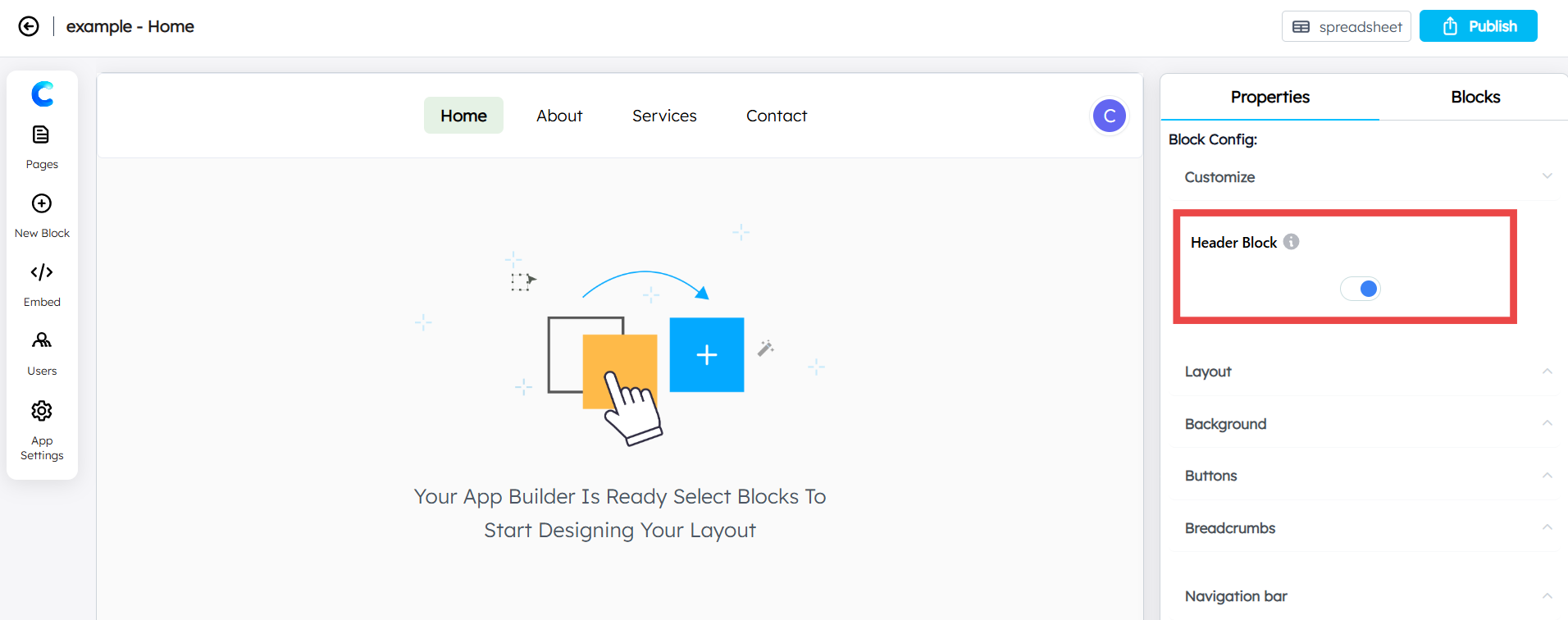
Header Block: Use this switch to enable or disable the header entirely. If your application does not require a navigation bar, switch this off to hide the block.
Layout
Layout Type: Use the dropdown menu to align your navigation options to the Left, Right, or Center.
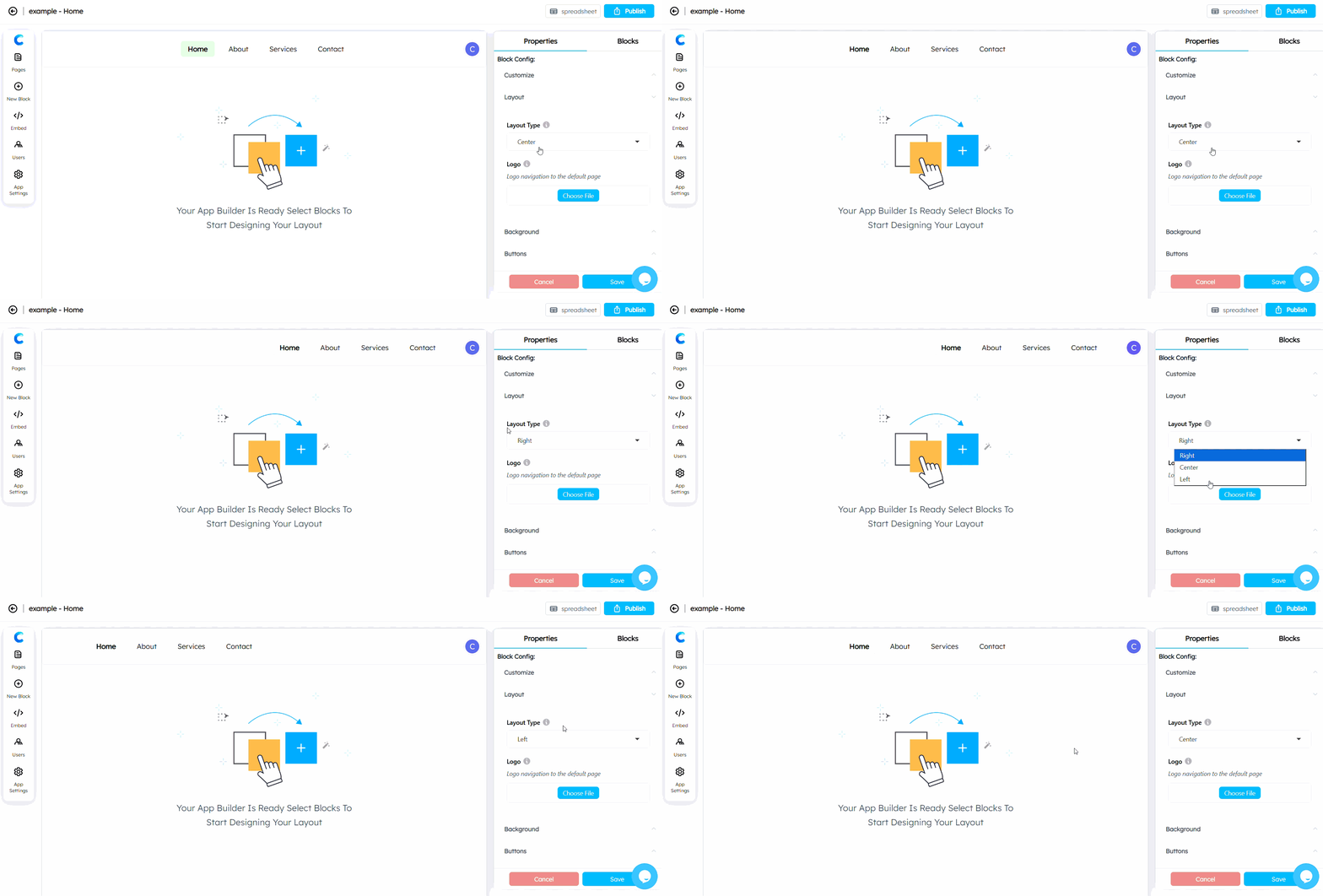
Logo: Upload your application logo here.
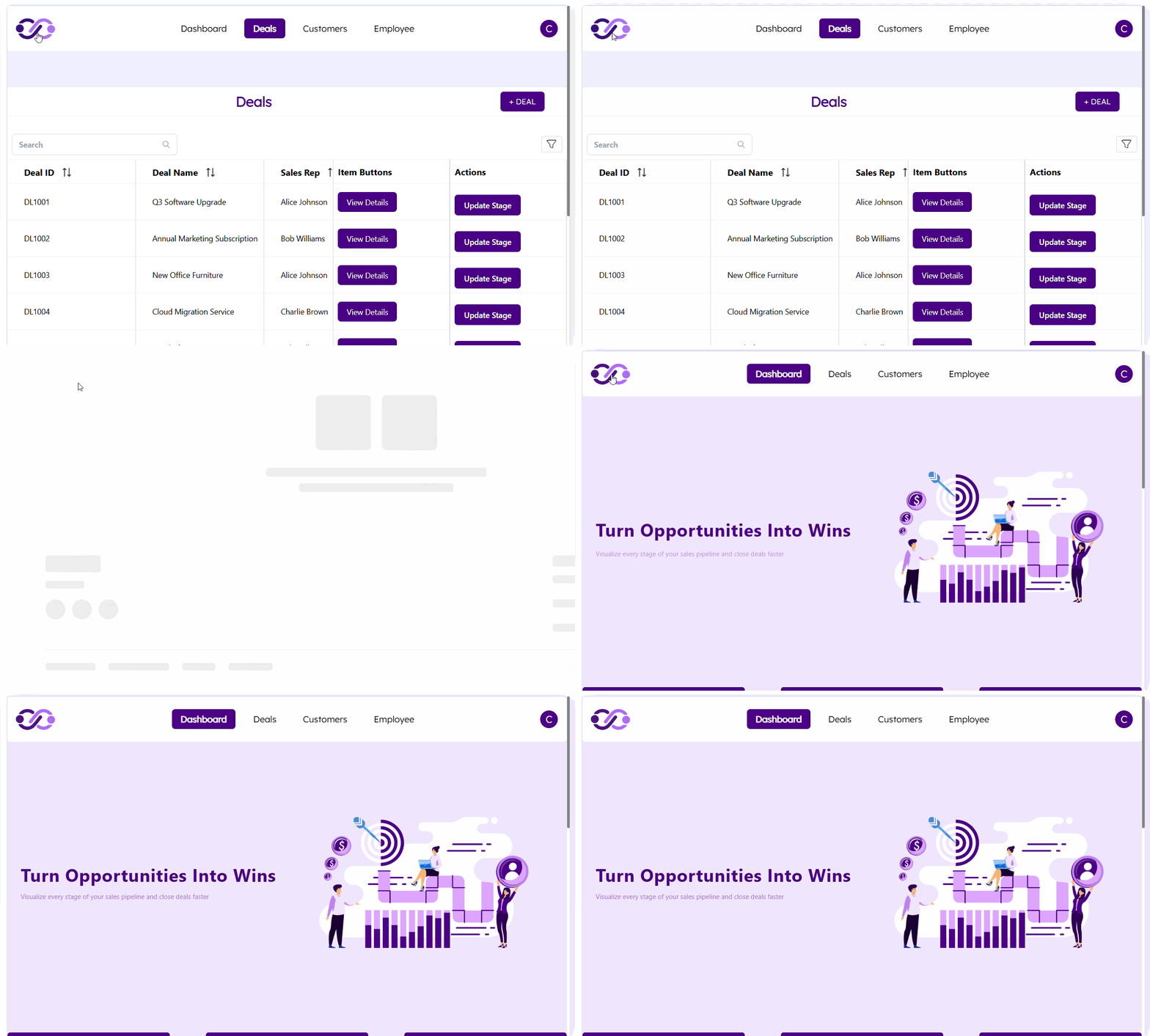
Functionality: Clicking the logo will automatically navigate the user to your Default Page (as set in the Pages configuration).
Background
Background Color: Select the primary color of the header using the color picker.
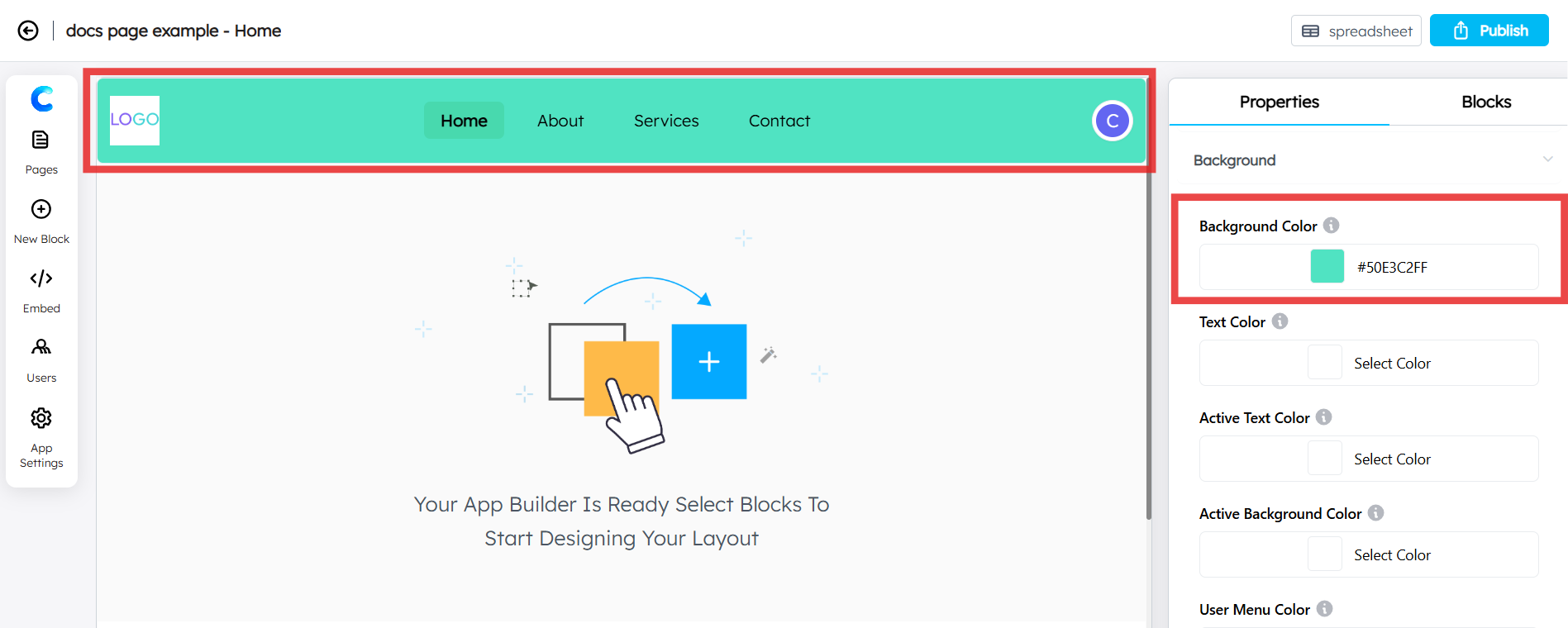
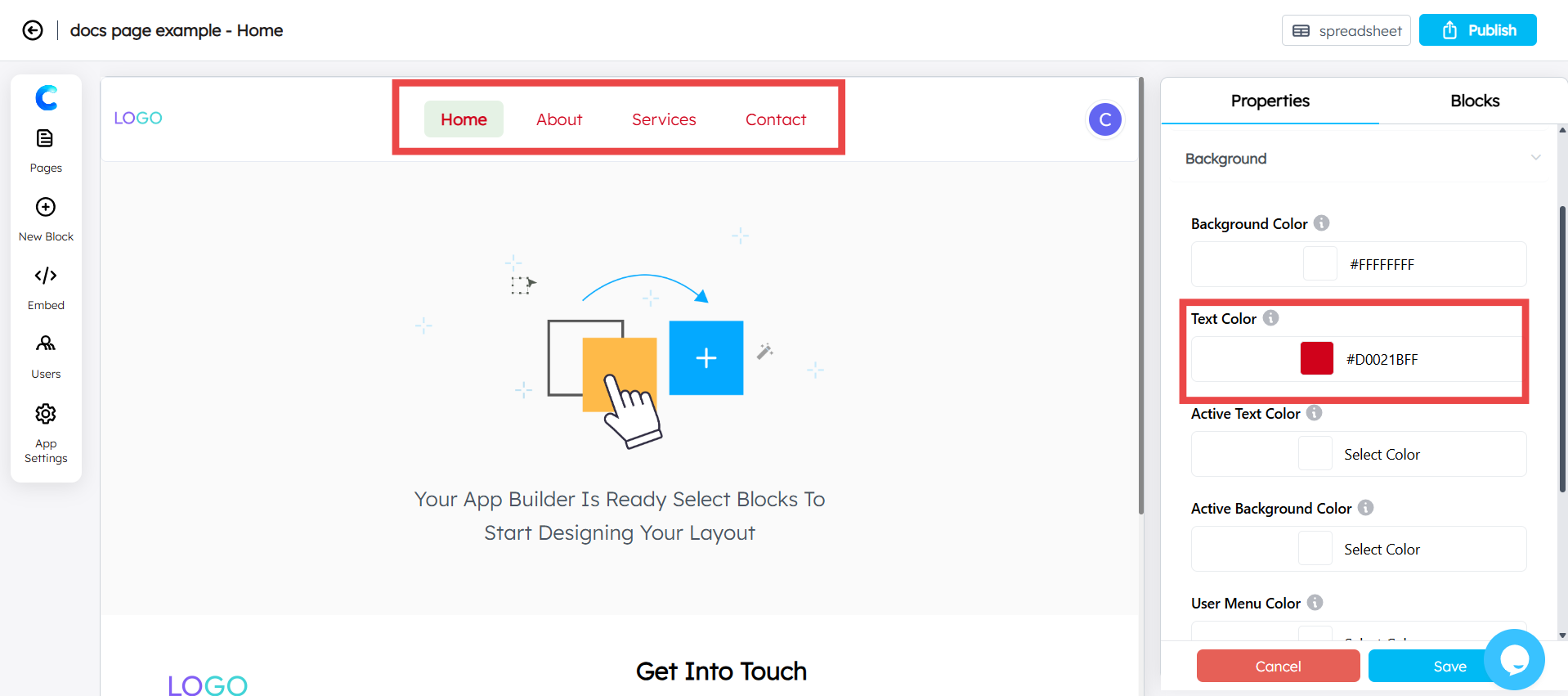
Text Color: Customize the color of the navigation links within the header.
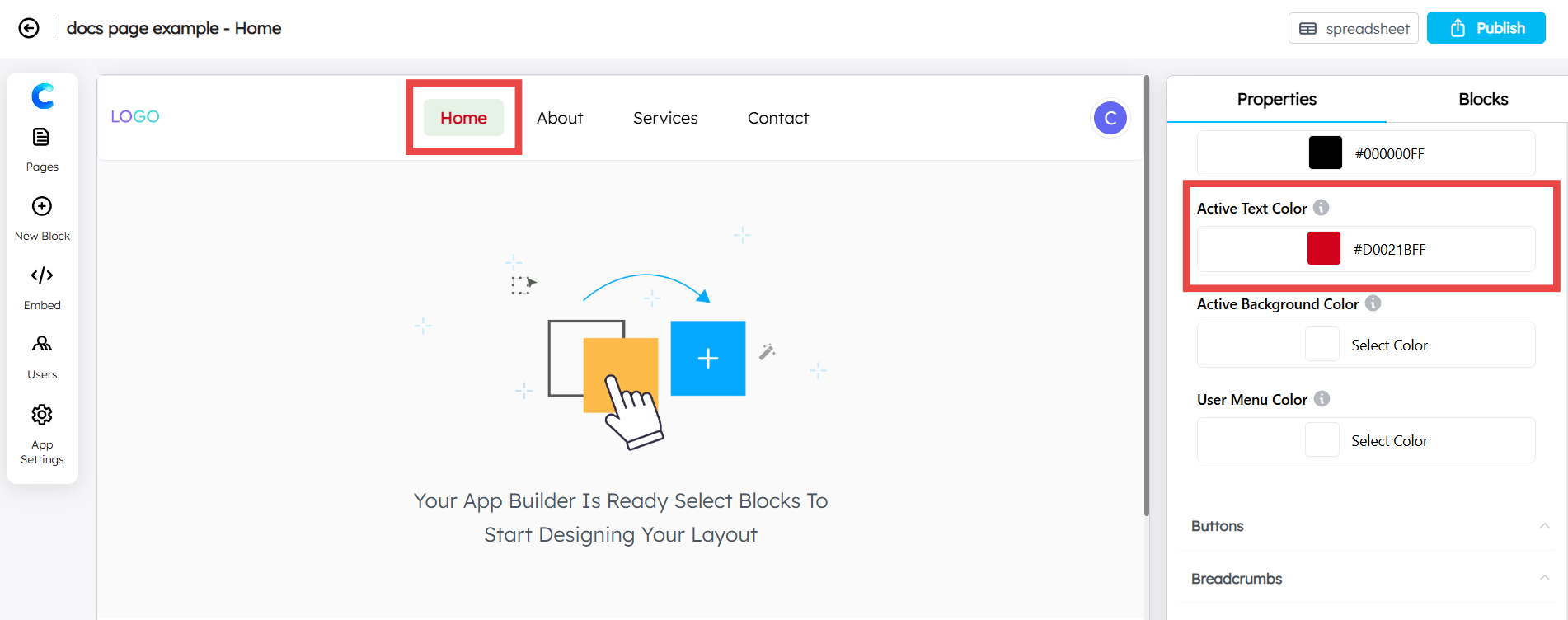
Active Text Color: Sets the color for the text of the active page.
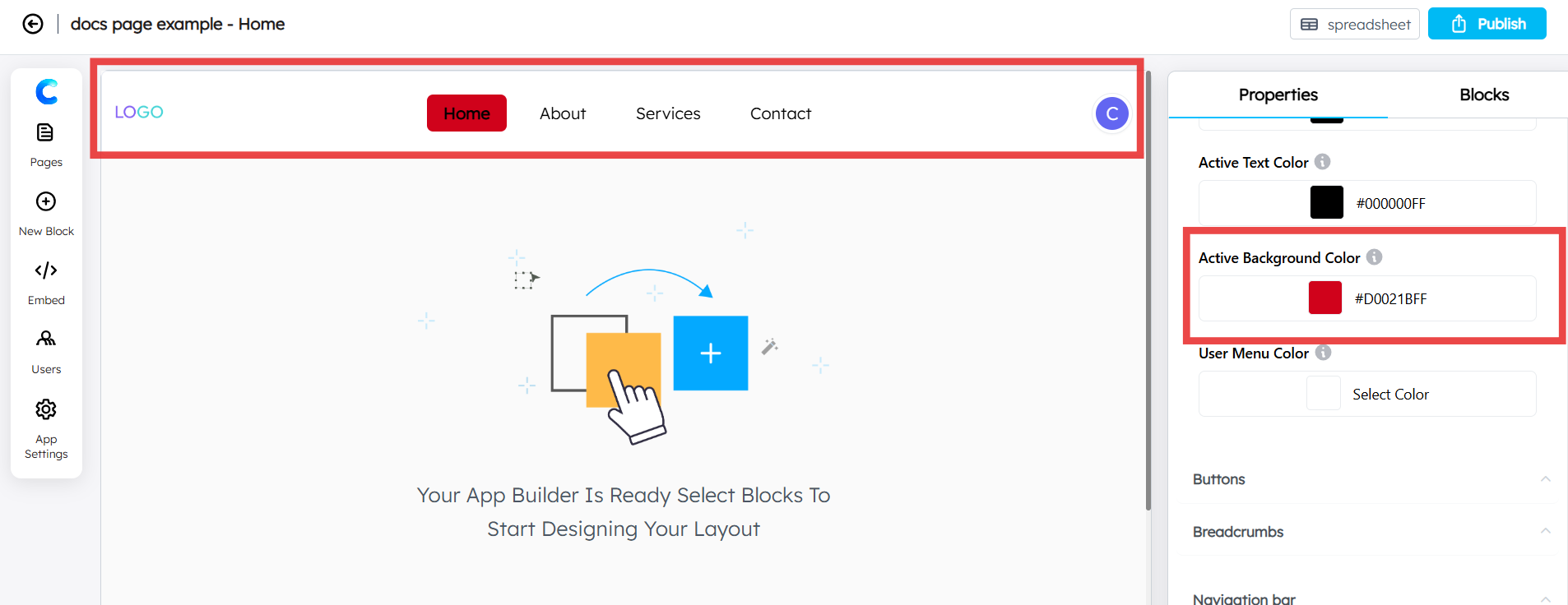
Active Background Color: Sets the color of the highlight shape behind the active page name.
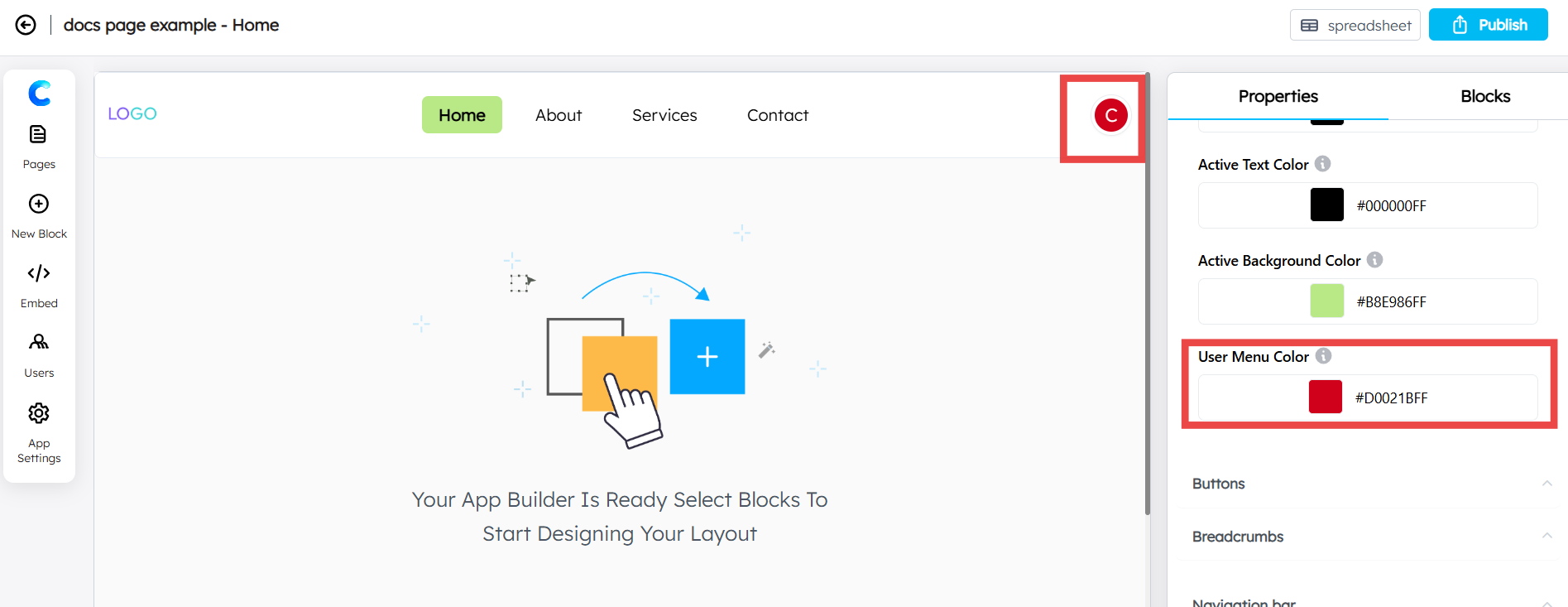
User Menu Color: Customize the color of the circular user icon (representing the logged-in user) located on the right side of the header.
Buttons
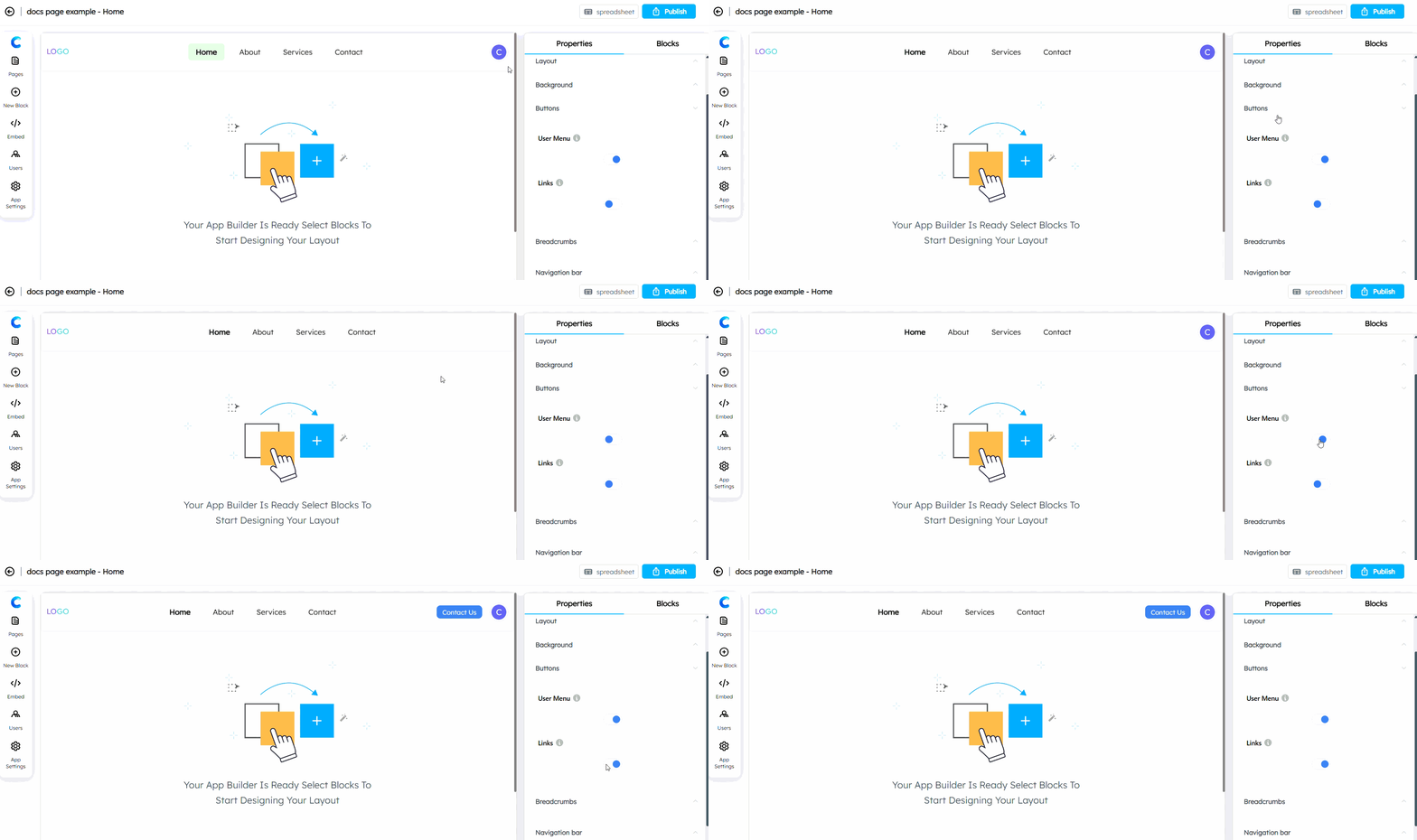
User Menu Toggle: Enable or disable the visibility of the user profile menu.
Links (CTA) Toggle: Enable this to include Call-to-Action (CTA) buttons in the header.
Breadcrumbs
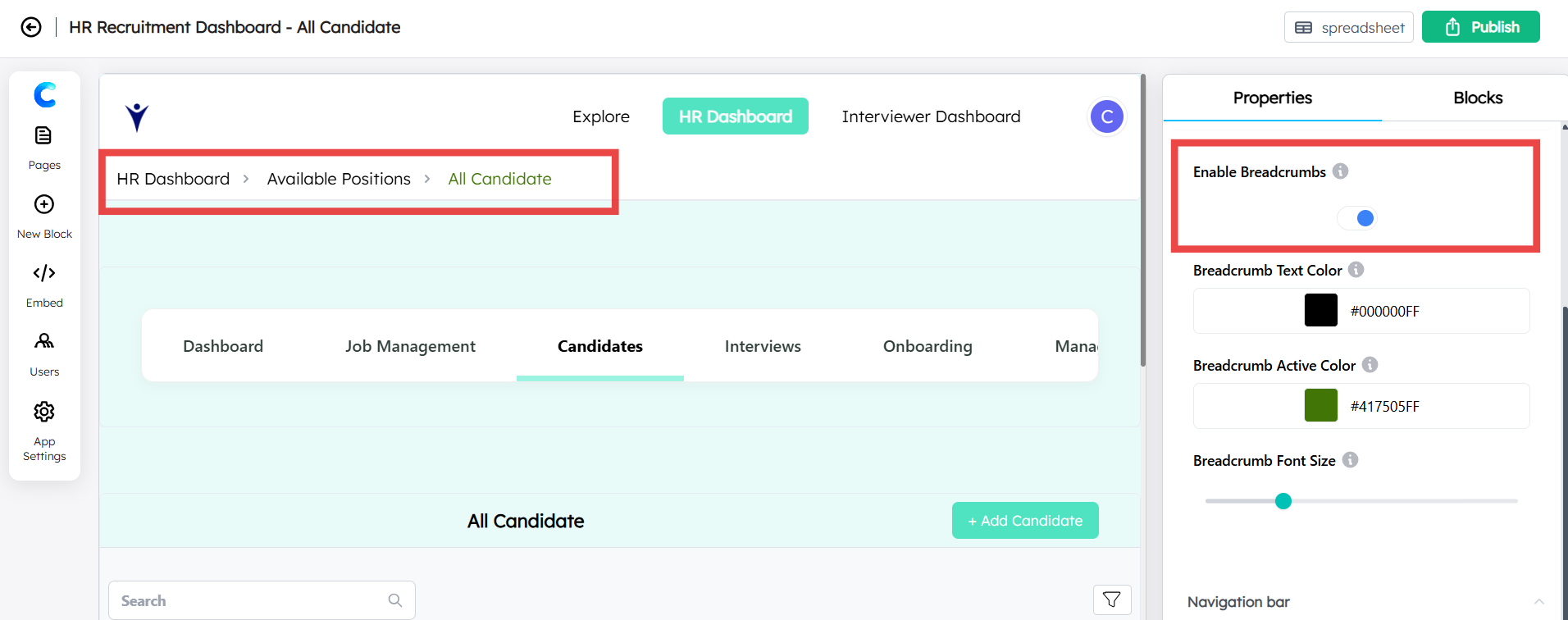
Enable Breadcrumbs: Toggle this on to show the navigational path (e.g., Home > Category > Page).
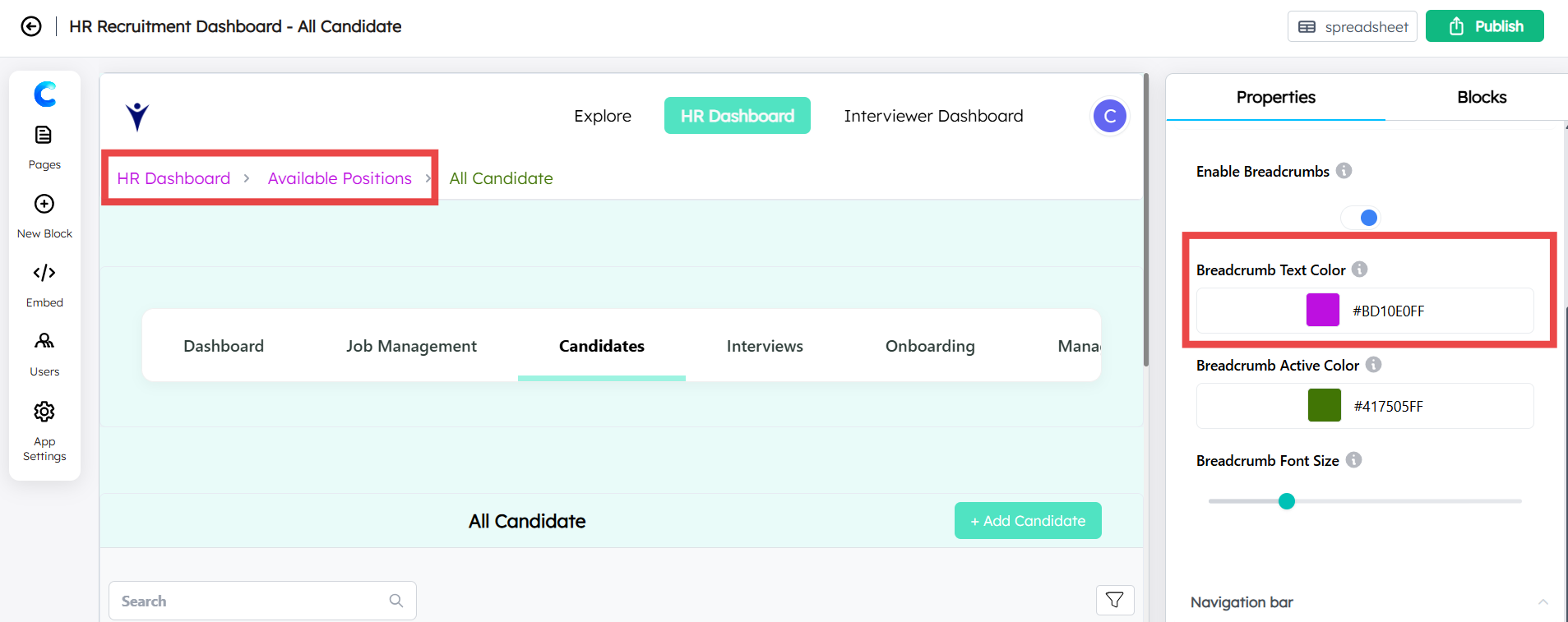
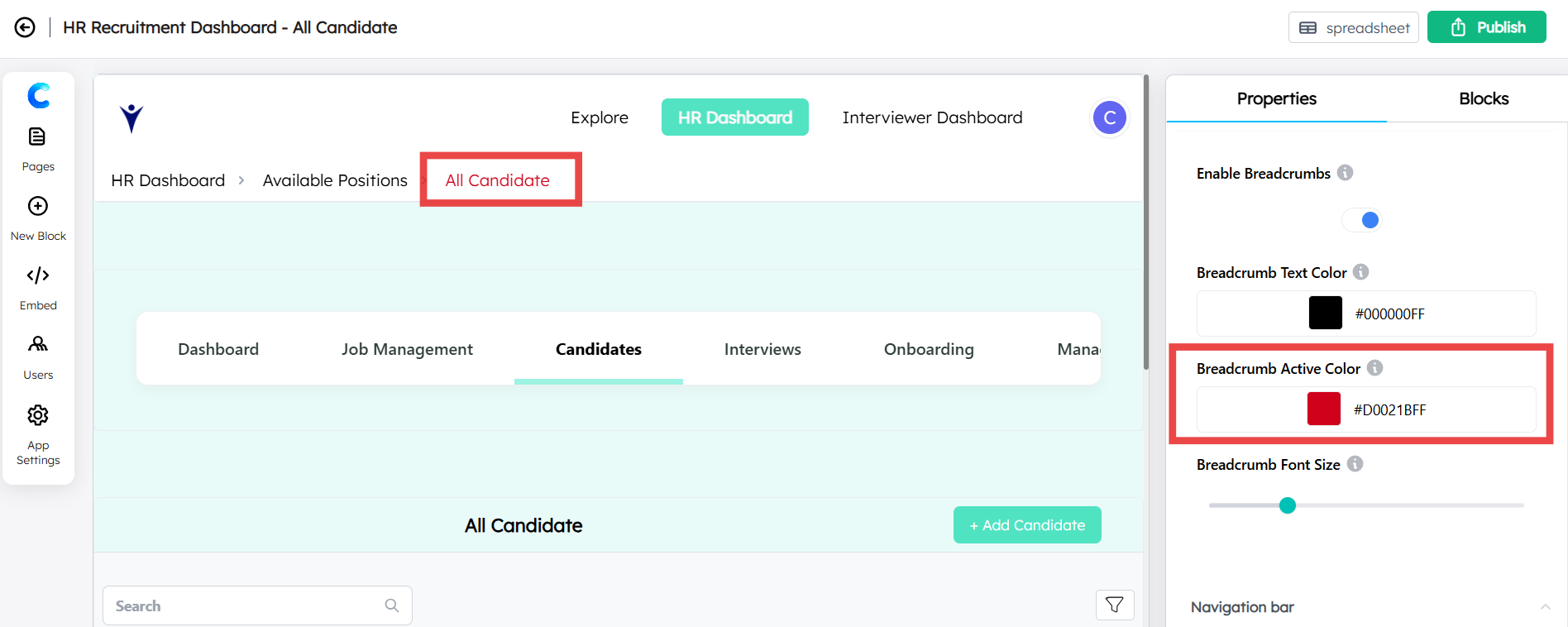
Colors: Customize both the standard Text Color and the Active Color for the current location.
Font Size: Adjust the size of the breadcrumb text using the scroll bar.
Navigation bar
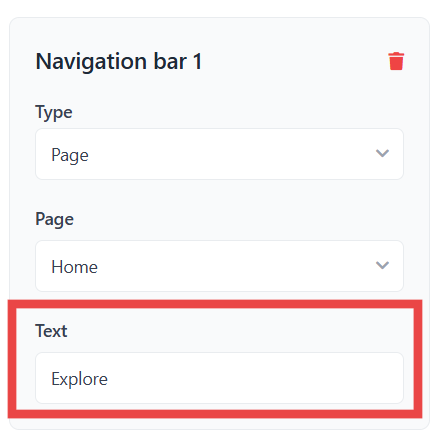
You can add up to 5 navigation options by clicking the Add button. Each option includes:
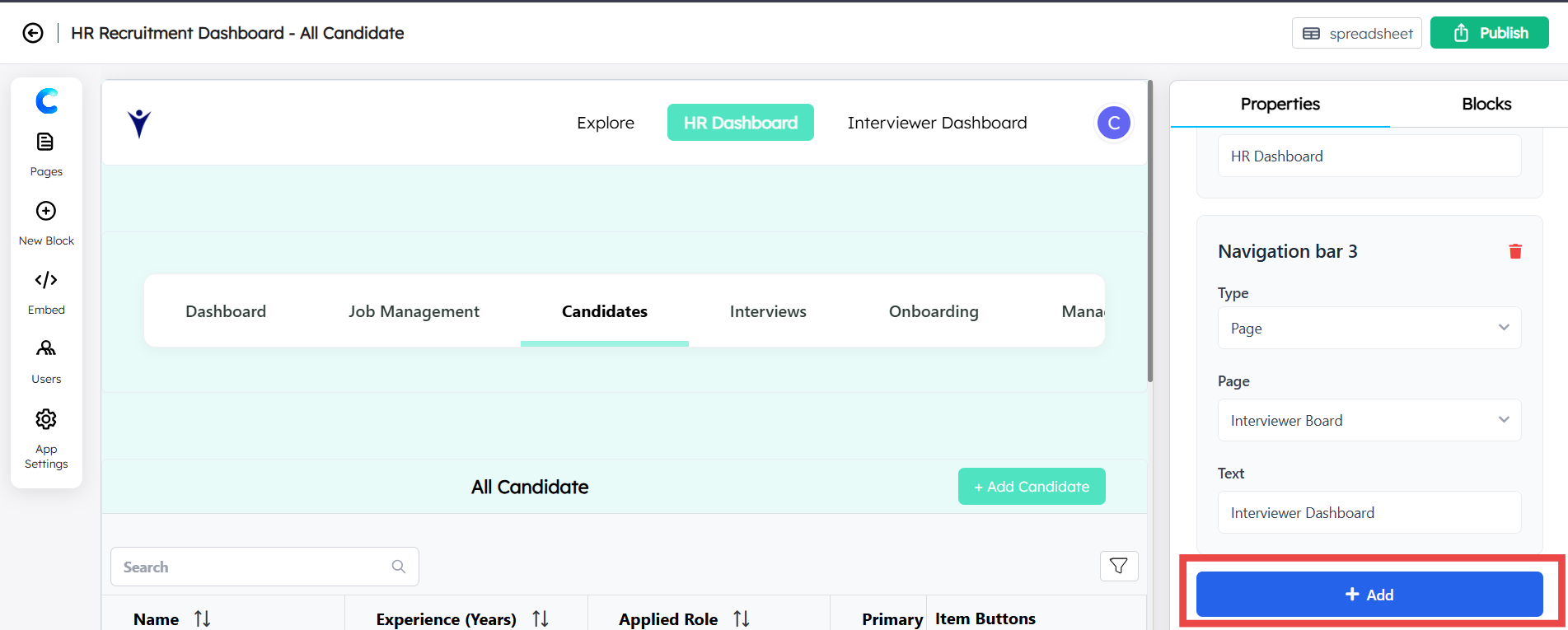
Type:
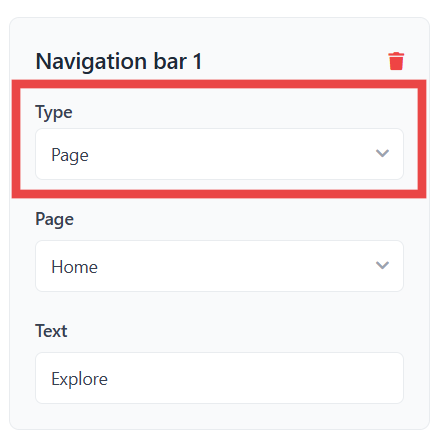
Page: Select from the list of pages you have already created via a dropdown menu.
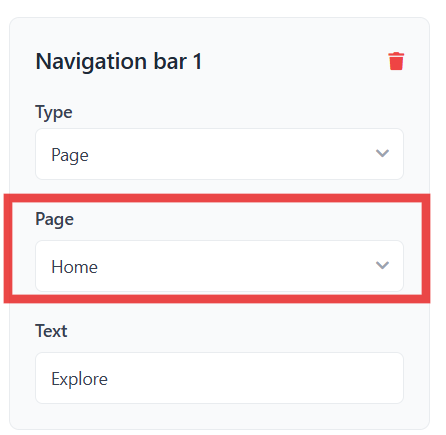
External URL: Enter a specific web address. Check the New Tab box if you want the link to open in a separate browser tab.
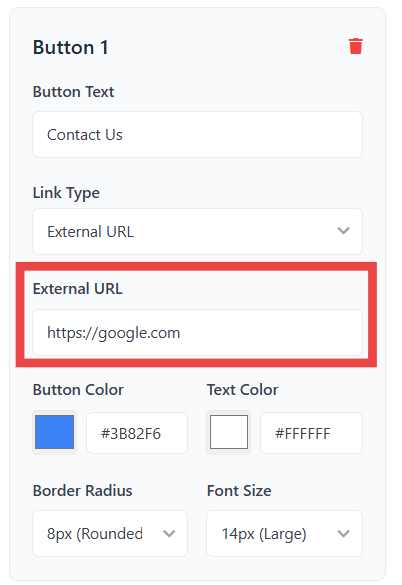
Text: Enter the label you want to appear in the navigation bar (e.g., “Dashboard” or “Support”).
Links
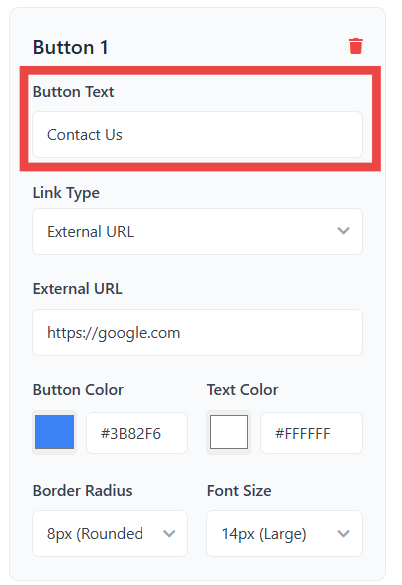
If the Links toggle is enabled, you can add up to 2 CTA buttons. Configure them as follows:
Button Text: The label displayed on the button.
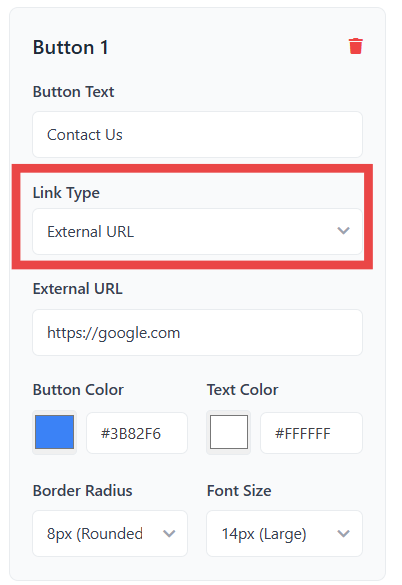
Link Type: Choose to link the button to an External URL or an existing Page.
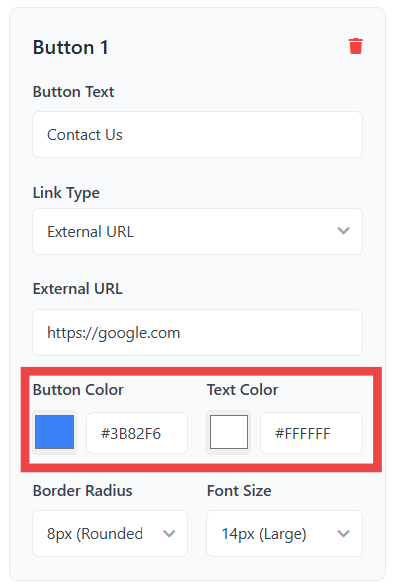
Aesthetics:
Button & Text Color: Full customization via the color picker.
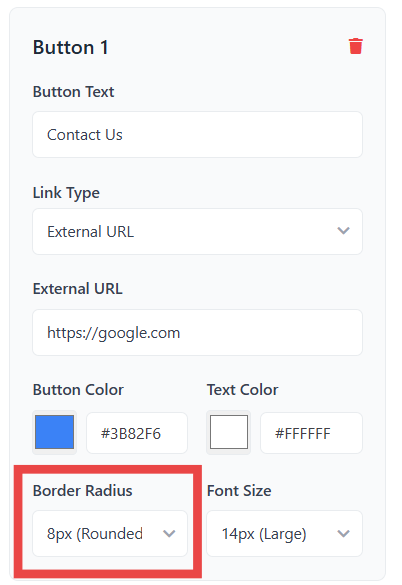
Border Radius: Choose from 0px (Square), 4px (Slightly rounded), 8px (Rounded), or 10px (Very rounded).
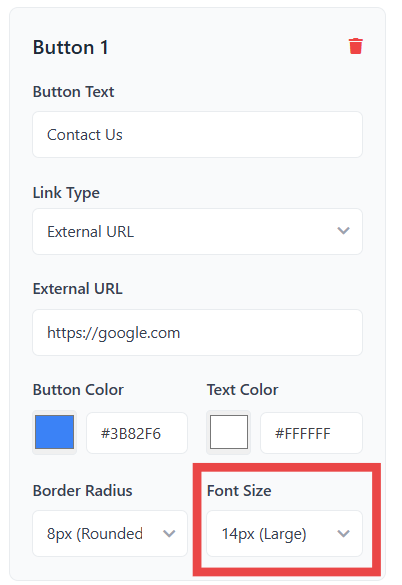
Font Size: Select from 10px (Small), 12px (Medium), 14px (Large), or 16px (Extra Large).
Footer
The Footer block provides a professional structure to your dashboard, offering comprehensive navigation options and essential contact information at the bottom of your application.
Block Configuration
Customize
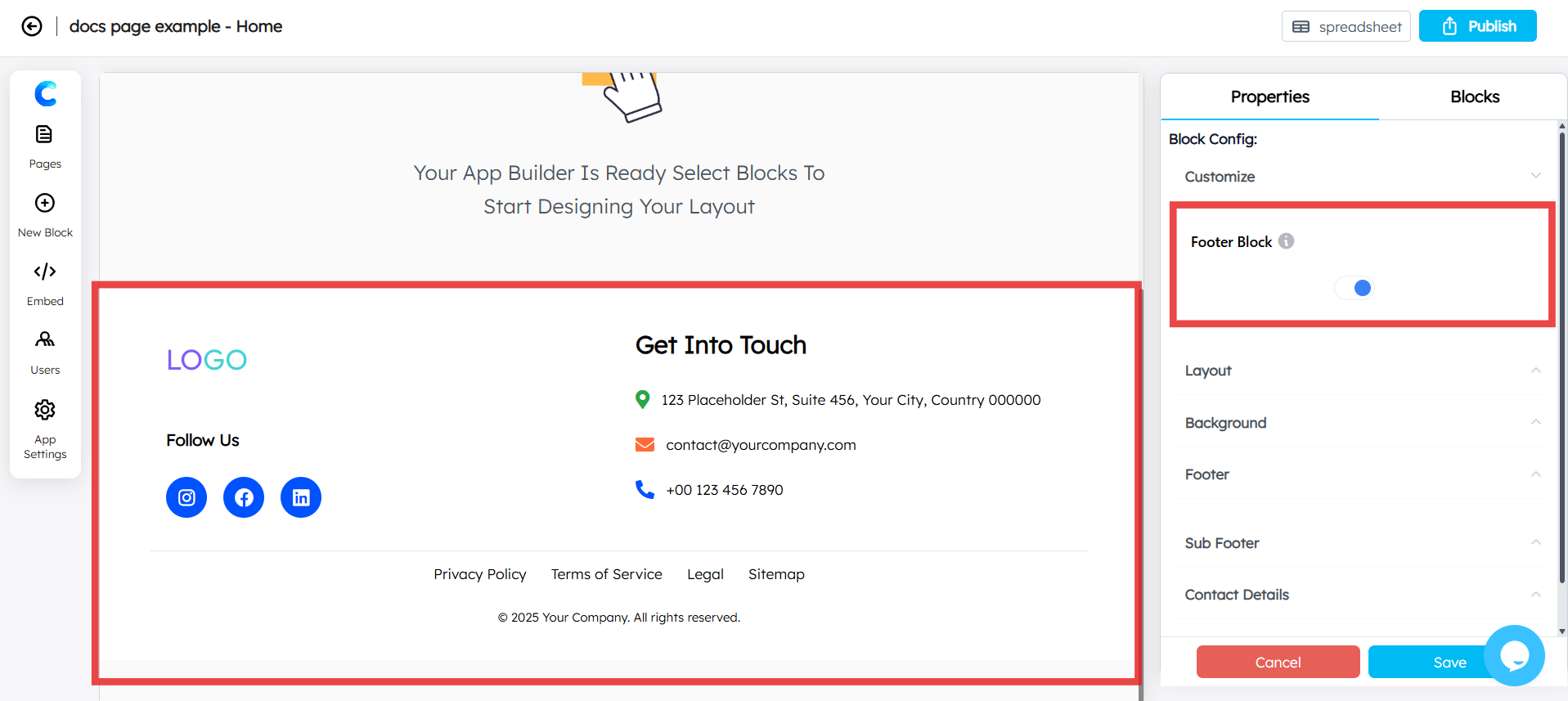
Footer Block: Use this switch to enable or disable the footer entirely. If your application does not require a footer, switch this off to hide the block.
Layout
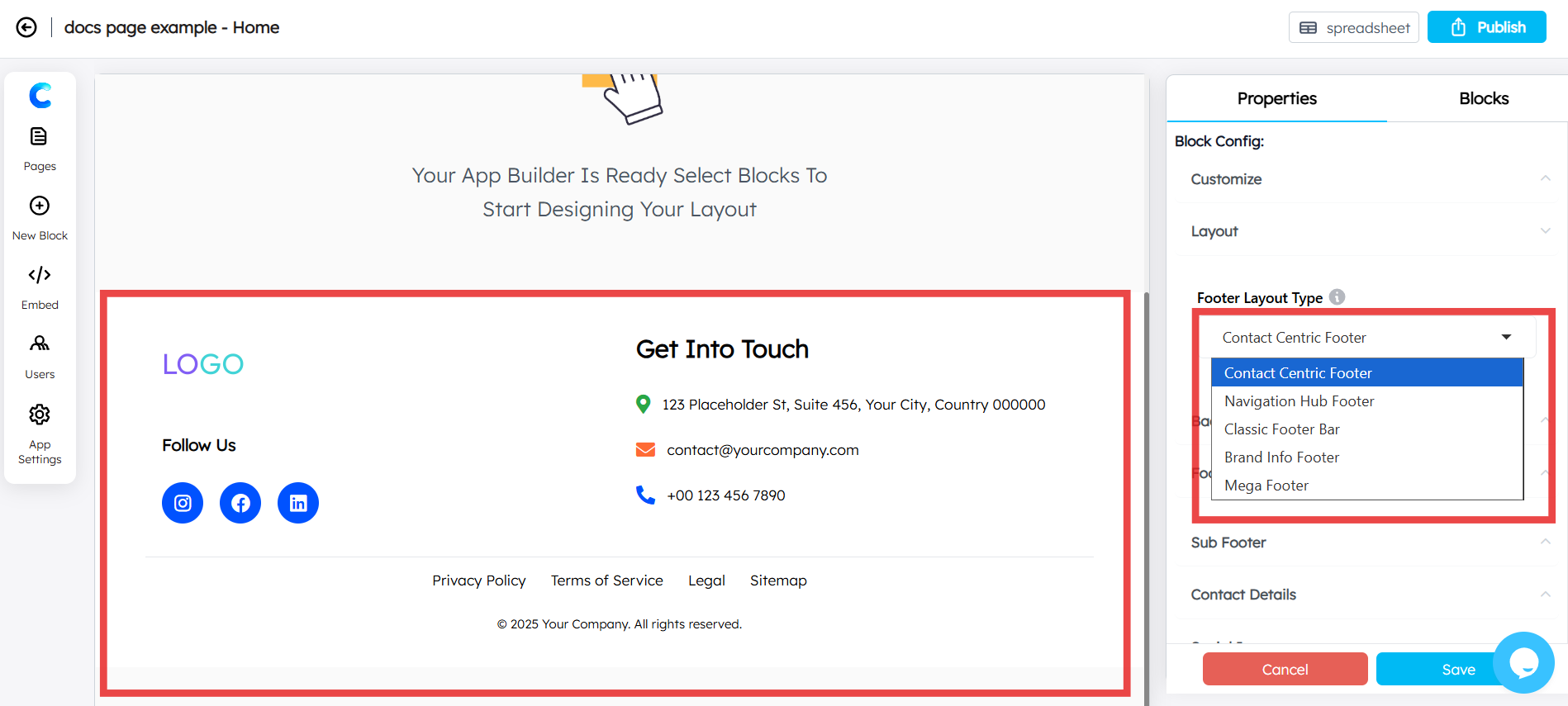
Layout Type: Use the dropdown menu to select from five distinct layout styles:
Contact Centric Footer: Focuses on your physical and digital contact details.
Navigation Hub Footer: Designed for complex site structures with multiple links.
Classic Footer: A standard, clean layout for general use.
Brand Info Footer: Emphasizes company branding and identity.
Mega Footer: A comprehensive layout for deep-link navigation and extensive content.
Background
Background Color: Select the primary color of the footer using the color picker.
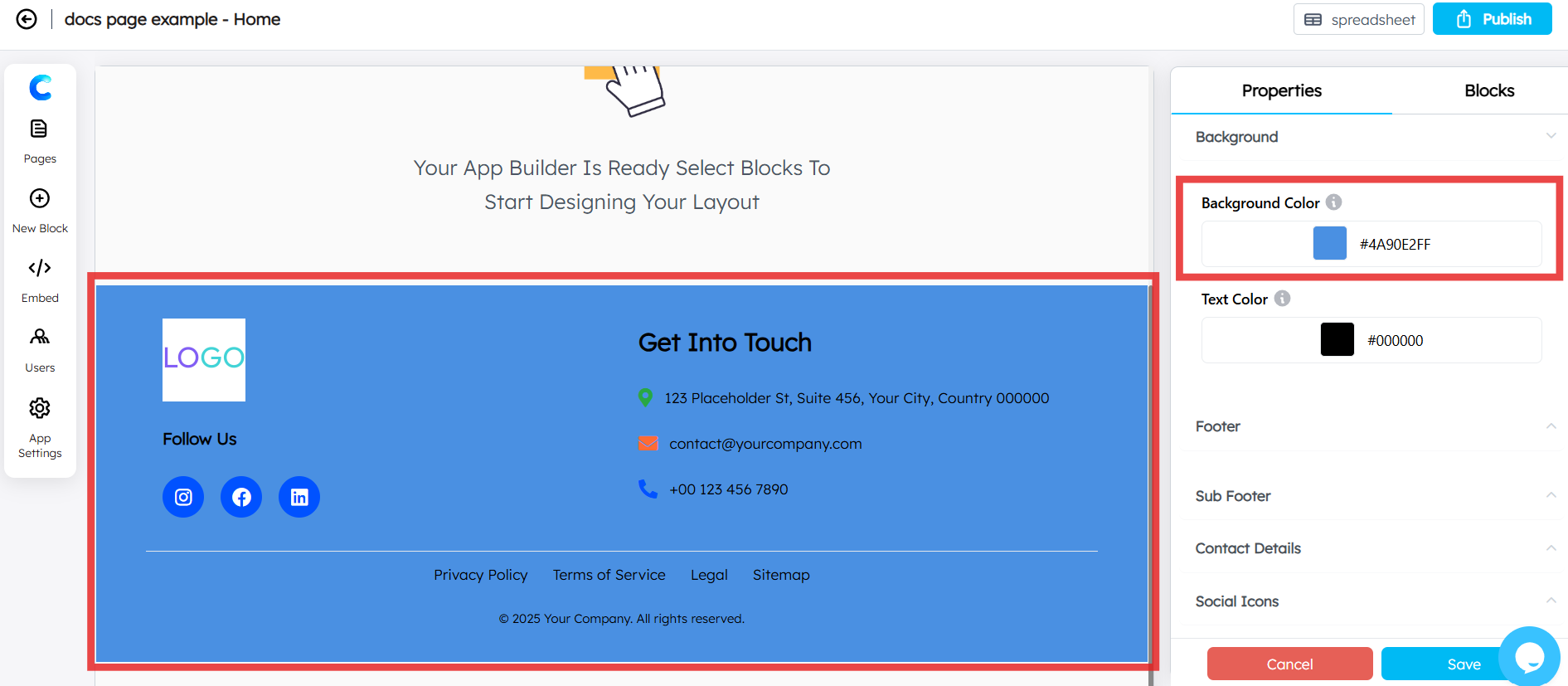
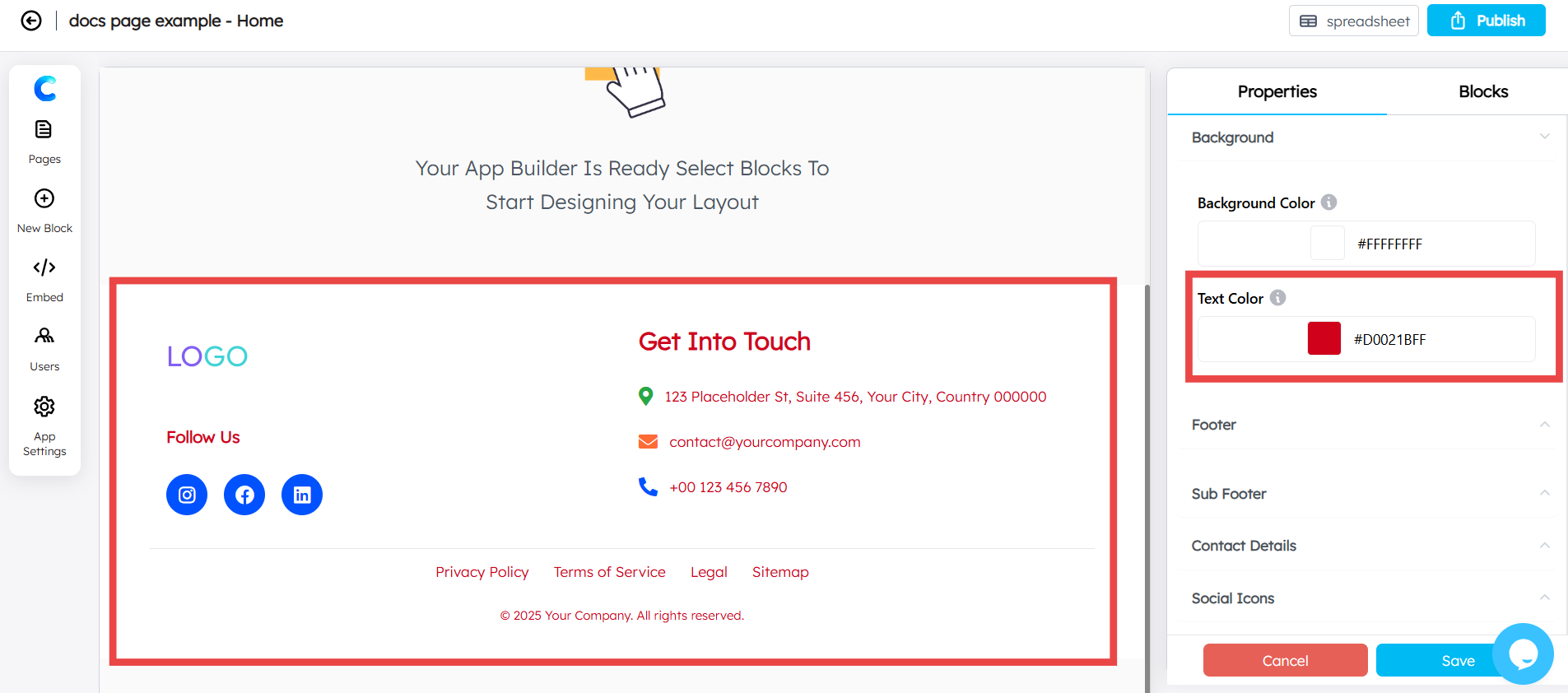
Text Color: Customize the color of the text and text within the footer.
Footer
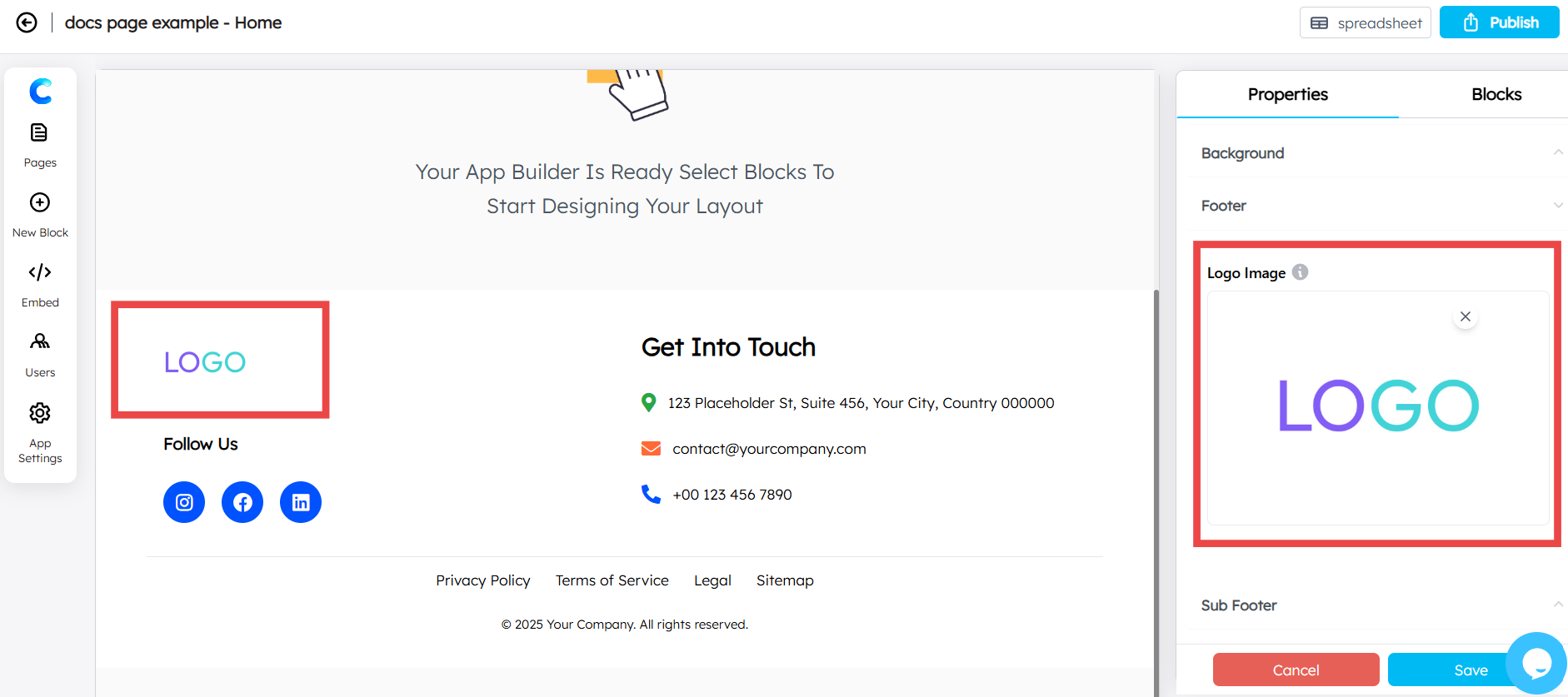
Logo: Upload your application logo to be displayed within the footer area.
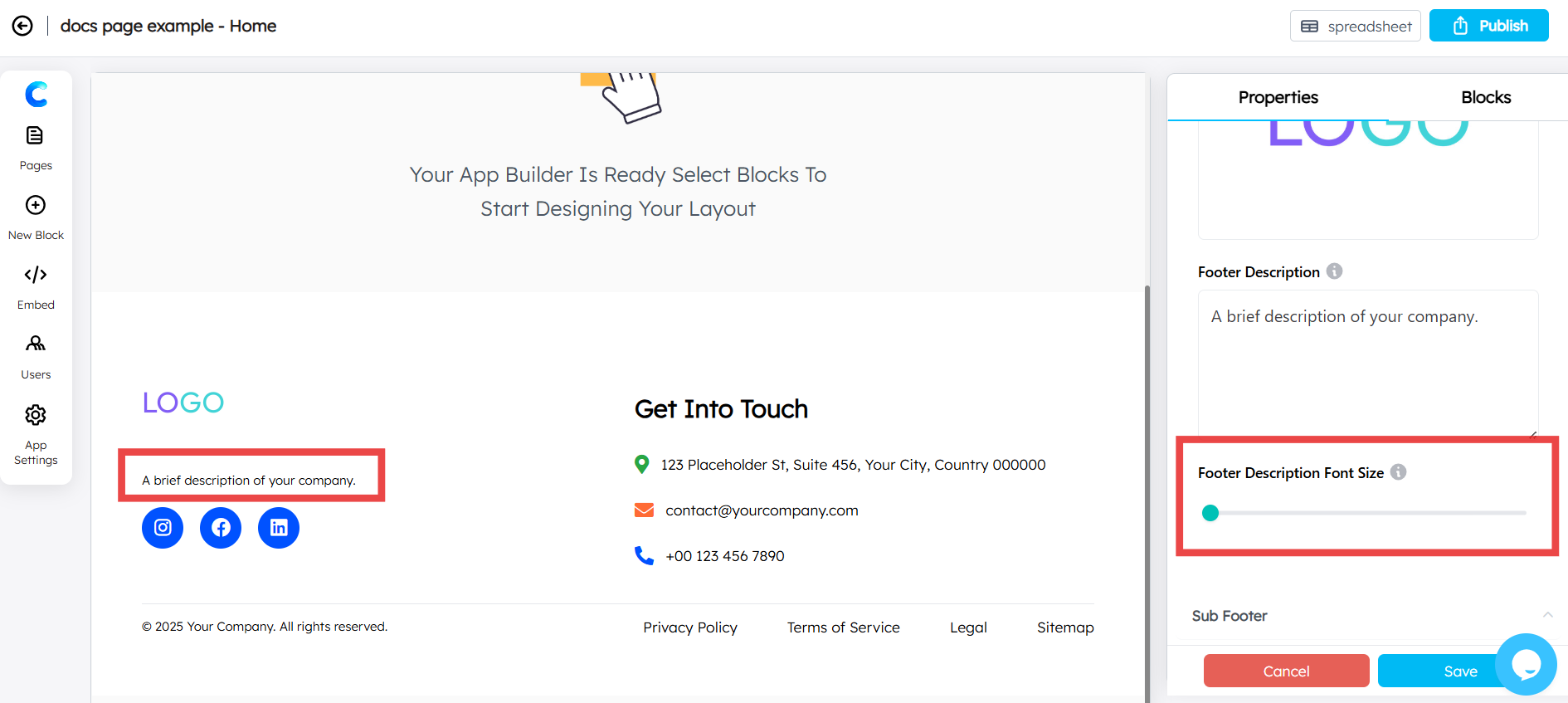
Footer Description: A text field to enter a company bio, mission statement, or additional brand information that appears underneath the footer logo.
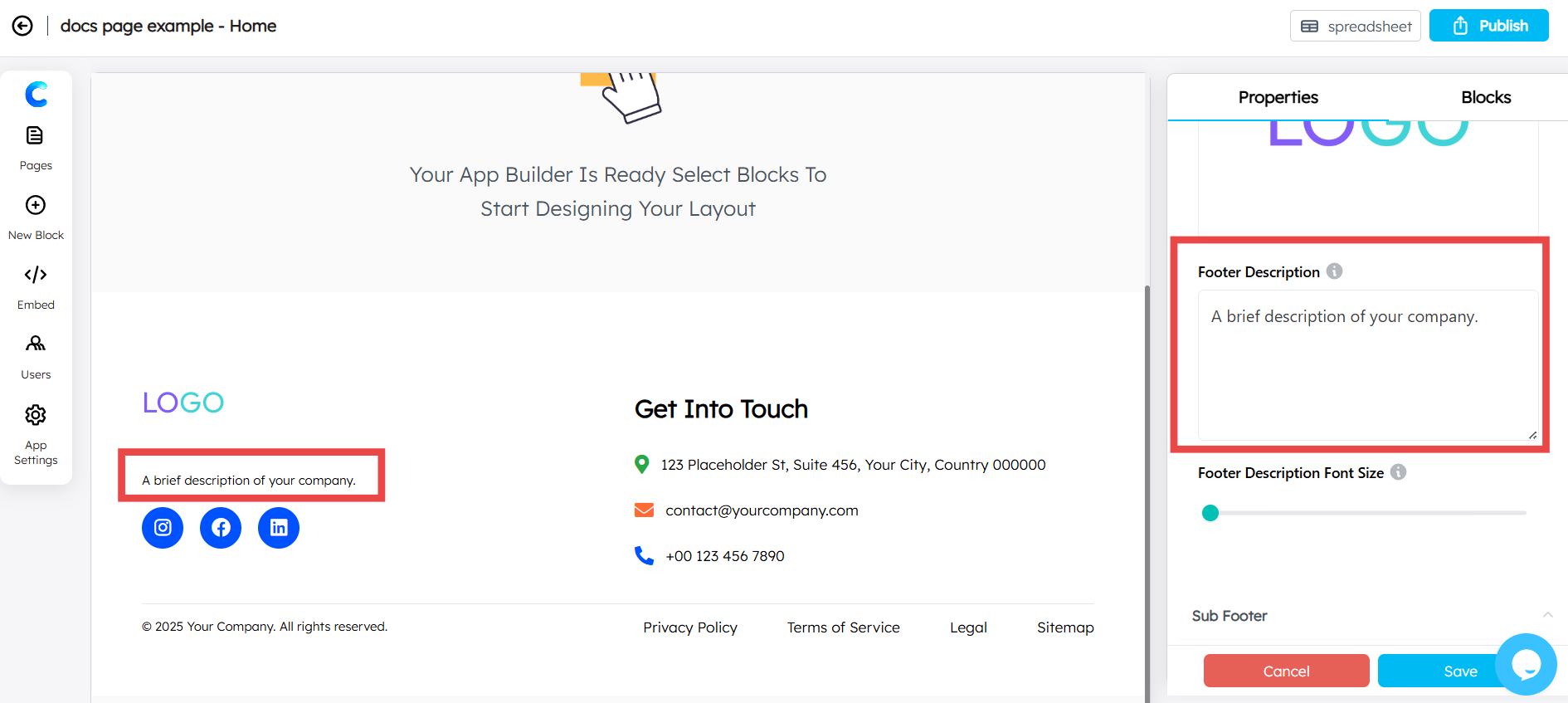
Footer Description Font Size: Use this setting to customize the size of the description text to ensure it balances well with the rest of the footer content.
Sub Footer
The footer is divided into a main section and a Sub Footer for secondary information.
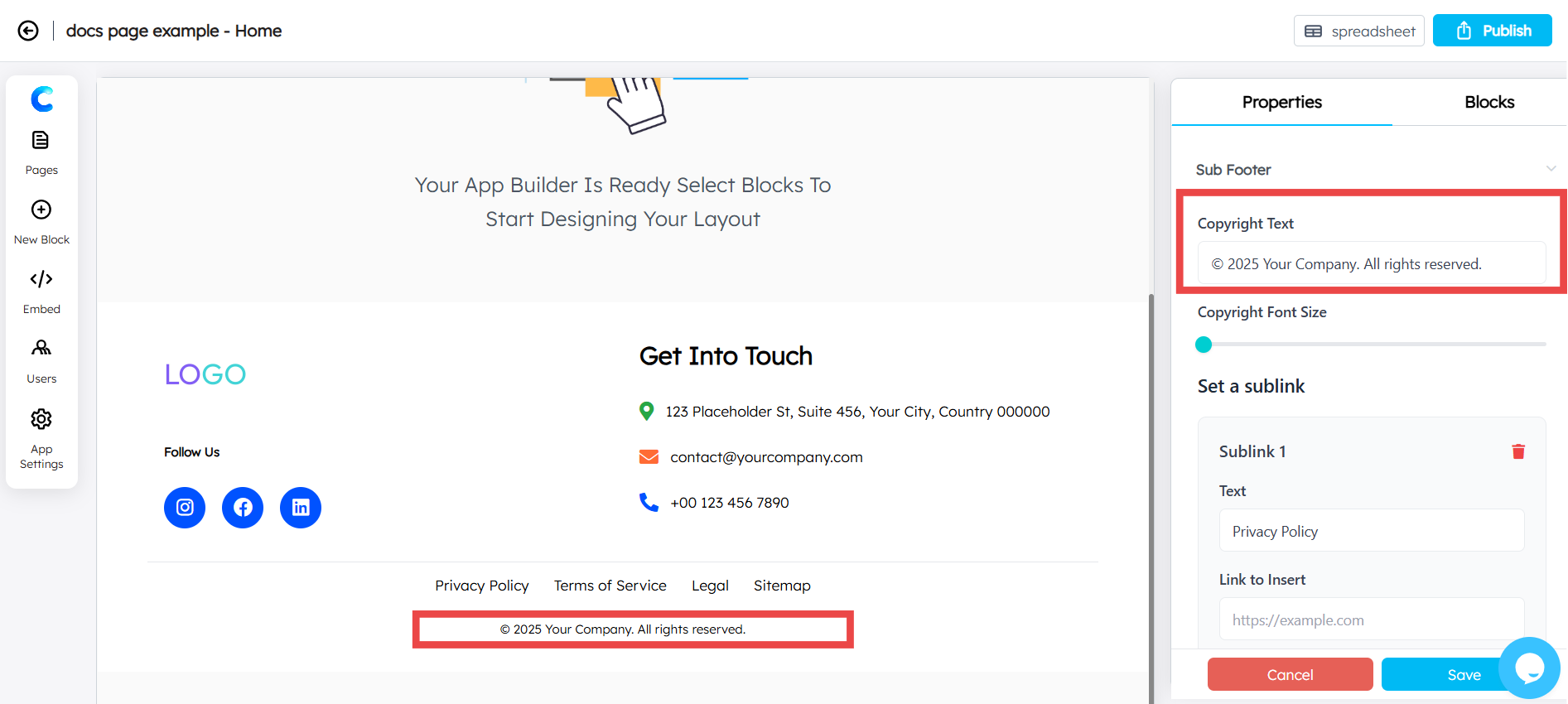
Copyright Text: Enter your legal copyright notice (e.g., “© 2026 Your Company”).
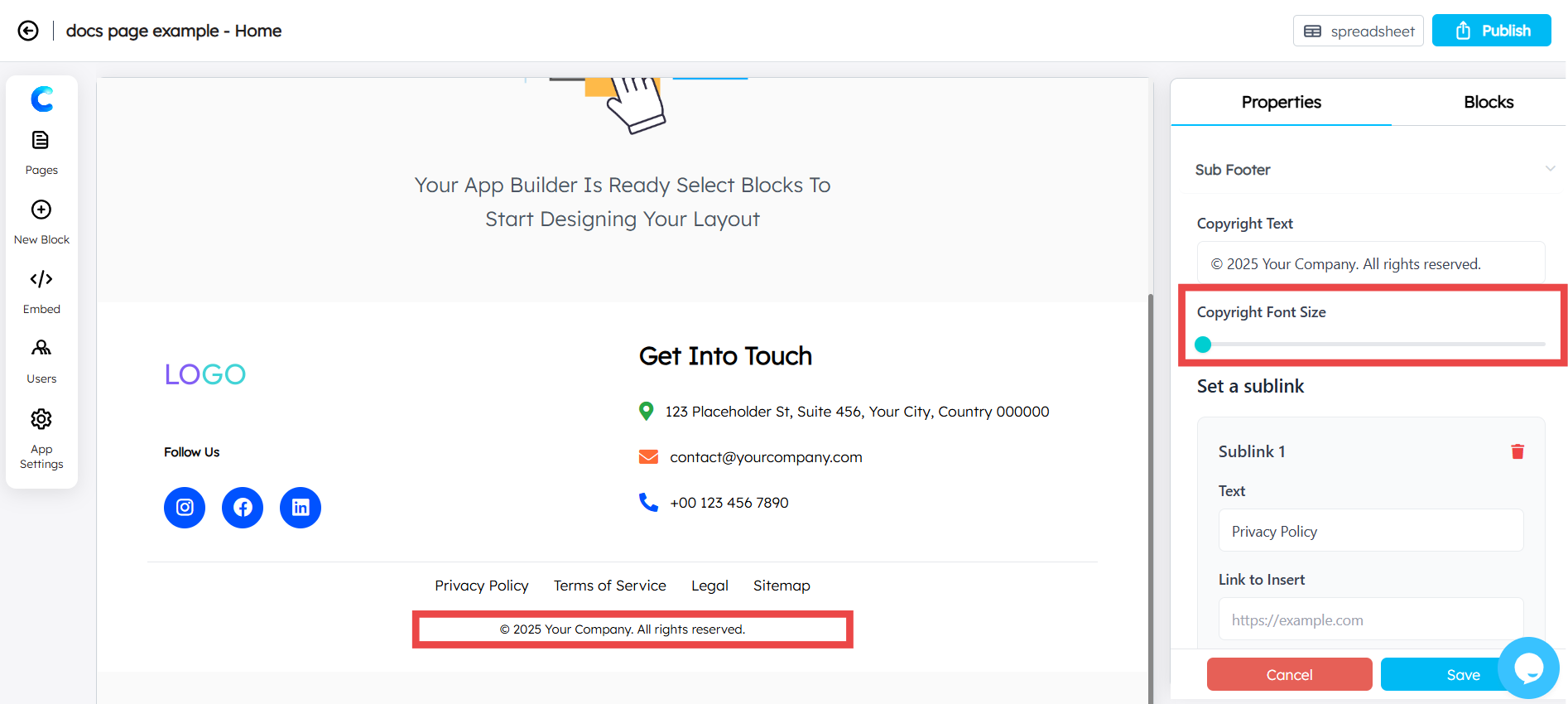
Copyright Font Size: Adjust the size of the copyright text for readability.
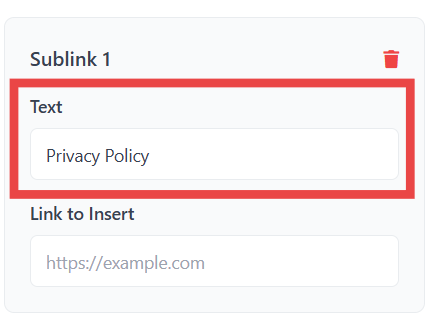
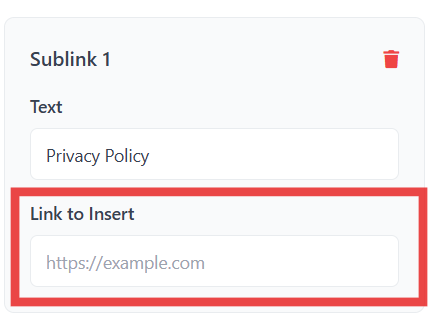
Sub Links: You can add a maximum of 4 sub links (e.g., Privacy Policy, Terms of Service). Each link container includes:
Text Field: The label for the link.
Link Field: The destination URL.
Contact Details
Manage how users reach you and find your social presence:
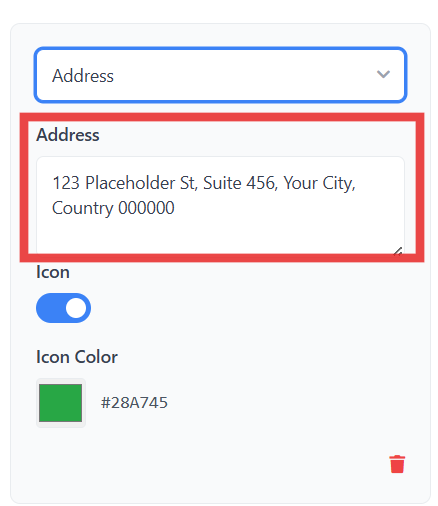
Address:
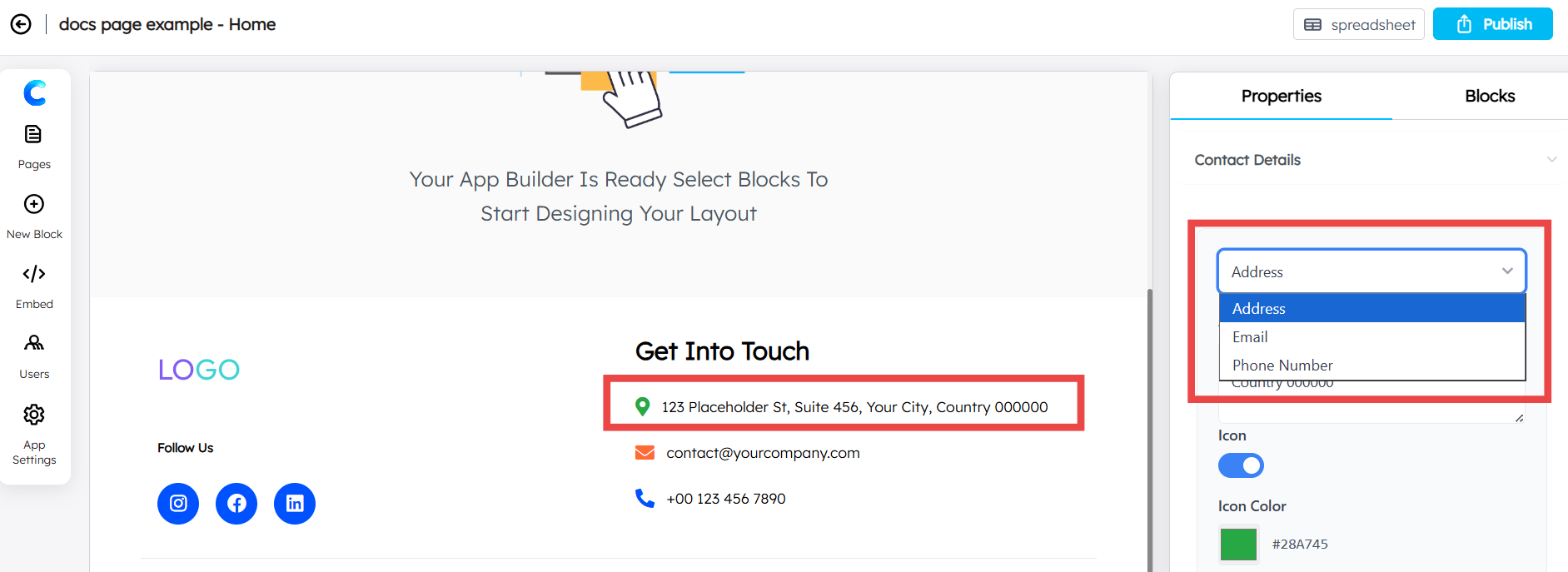
Enter your physical or office location in the dedicated text field.
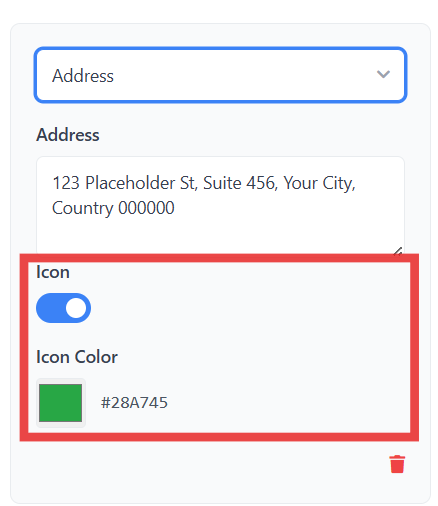
Icon Toggle: Enable or disable the location icon next to the address.
Icon Color: Choose a custom color for the location icon via the color picker.
Email:
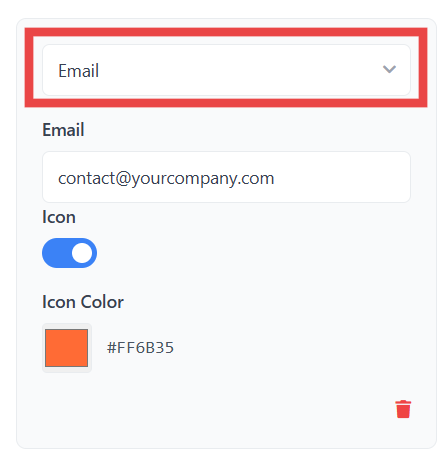
Enter your professional contact email in the dedicated text field.
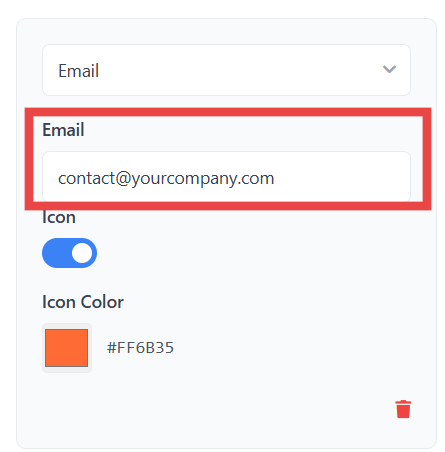
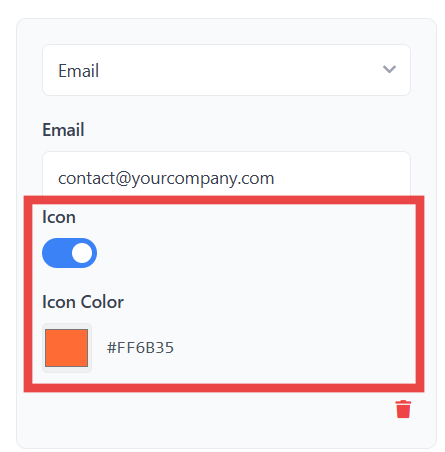
Icon Toggle: Enable or disable the envelope icon next to the email address.
Icon Color: Choose a custom color for the email icon via the color picker.
Phone Number:
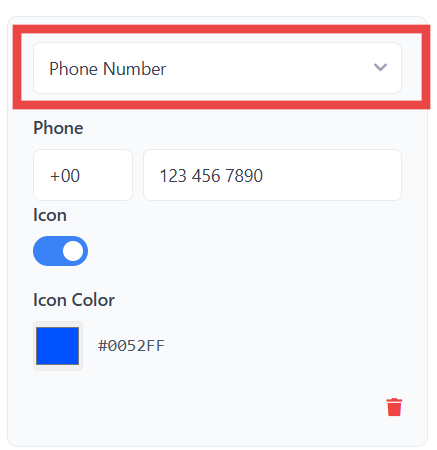
Enter your contact number in the dedicated text field.
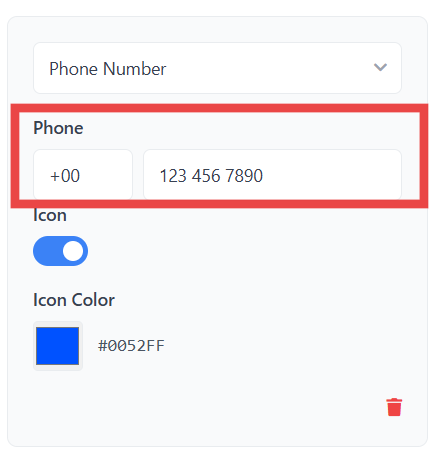
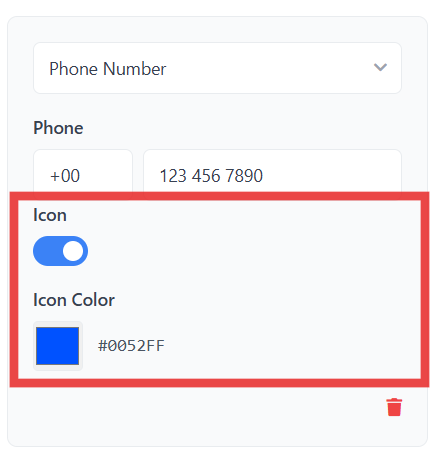
Icon Toggle: Enable or disable the phone icon next to the number.
Icon Color: Choose a custom color for the phone icon via the color picker.
Navigation Links
This feature is available in the Navigation Hub, Classic, and Mega Footer layouts.
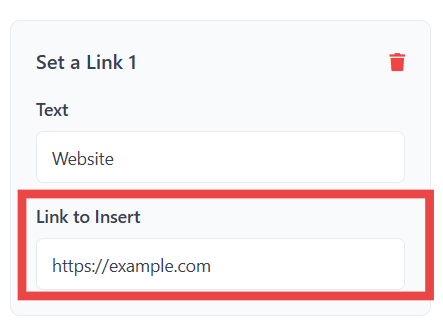
Link Management: You can add up to 10 links using the provided grid.
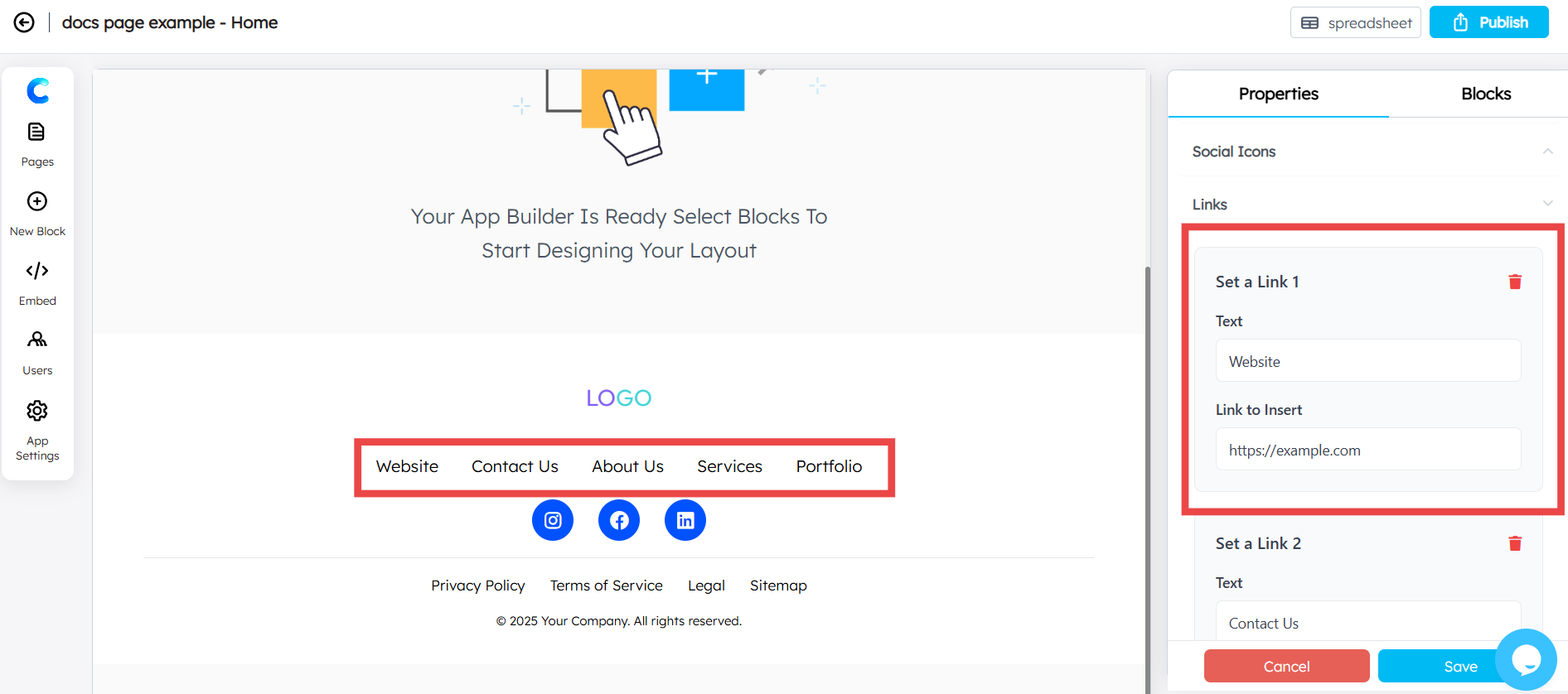
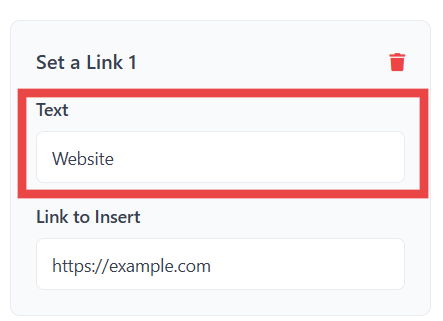
Text: Enter the label to be displayed in the footer.
Link to Insert: Paste the specific navigation URL for each entry.
Social Icons
Add links to your social media profiles (LinkedIn, Instagram, and Facebook).
Platform Selection: Choose the platform from the dropdown menu.
Link: Paste the URL to your specific social media account.
Icon Toggle: Show or hide the platform icon.
Icon Color: Customize the icon color to match your branding.