App Settings
The App Settings section provides comprehensive controls for managing your workspace identity, team collaboration, communication channels, and data connections. This centralized configuration hub ensures your application operates seamlessly while maintaining professional standards and team coordination.
General Settings
Name: Helps you identify this specific workspace among others in your account.
Subdomain: The unique, system-assigned URL prefix for this workspace.
Custom Domain: Link your own professional domain (e.g., appname.yourcompany.com) by clicking the Add button.
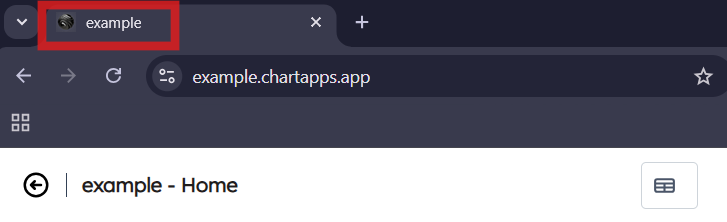
Favicon: Upload a custom square file (recommended 32x32px). This icon appears in the browser tab, helping users identify your workspace when multiple tabs are open.
Collaborators
Manage internal team permissions within the workspace:
Admins: Have full authority to create and edit boards, as well as modify all settings.
Guests: Restricted to view-only access for existing boards.
Invite Users: Add new collaborators simply by entering their email addresses.

Email Settings
ChartApps Default
By default, ChartApps uses a built-in email service to deliver Login PINs. This is a “plug-and-play” option requiring no additional configuration.
Postmark
For a more branded experience, you can route Login PINs through your own Postmark account. Click Edit to configure:
Postmark API Key: Enter the key from your Postmark account to authenticate the connection.
Sender Email Address: Specify the “From” address users will see (e.g., notifications@yourbrand.com).
Sender Name: Enter the name that appears in the “From” field (e.g., Your Company Name).
Verification: Use the Send test email button to confirm the connection is active before clicking Save.
Google Connection
This section displays the active Google account linked to the app for spreadsheet access.
Refresh Connection: Ensure continued access or update the linked account if credentials change.
Authorize App Script
If your workflow requires macros or custom automation within Google Sheets, click Authorize Google Apps Script. This grants the workspace deeper permissions to interact with your data.
Data Source
ChartApps automatically generates data sources from every sheet in your connected spreadsheet. You can refine exactly which data is pulled by customizing the range:
Default:
A1(Starts at the first row and column).Offset Start: Use
B1if you have headers or pivot table data in the first row that you wish to skip.Specific Range: Use coordinates like
C4:D16to isolate a specific block of data.