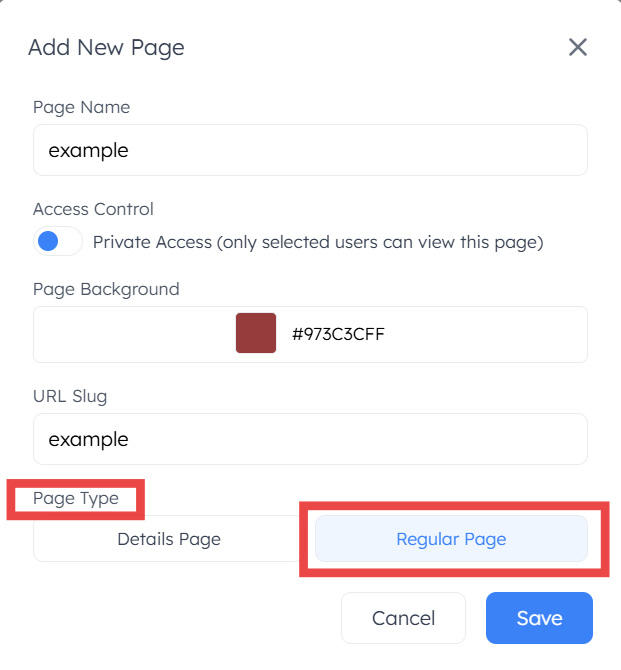
Pages
The Pages setting is designed to manage the navigation of your application. This configuration ensures that each page retrieves and displays accurate data from your selected data source.
Page Types
There are two distinct page types available for configuration:
1. Details Page
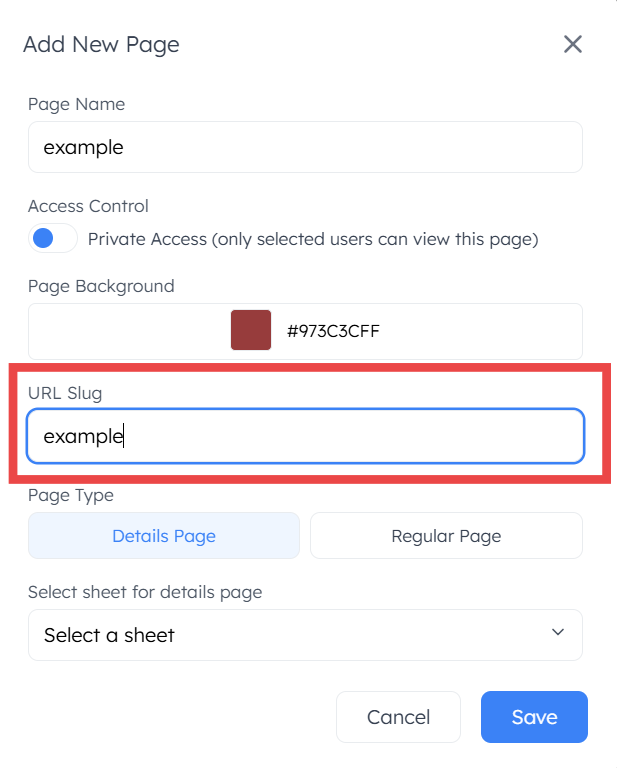
Used to configure conditional filtering for specific data sources. To set up a Details page, configure the following:
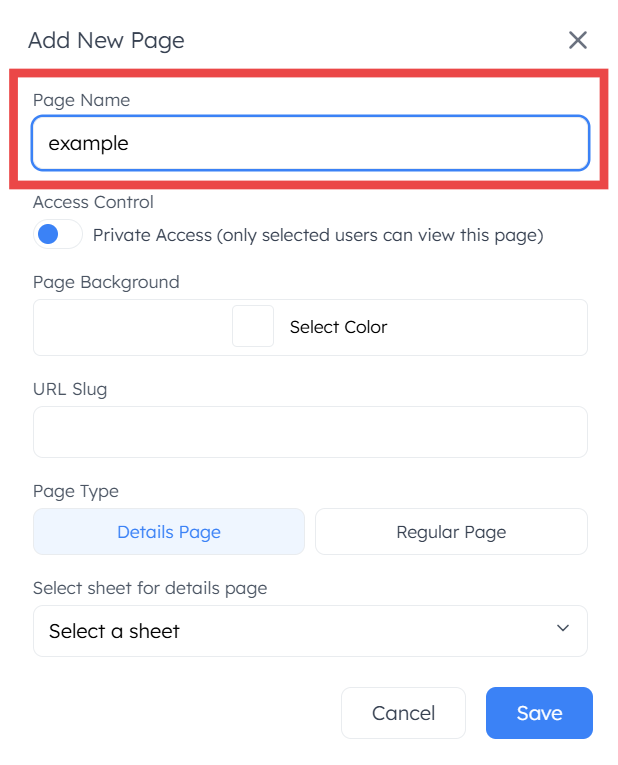
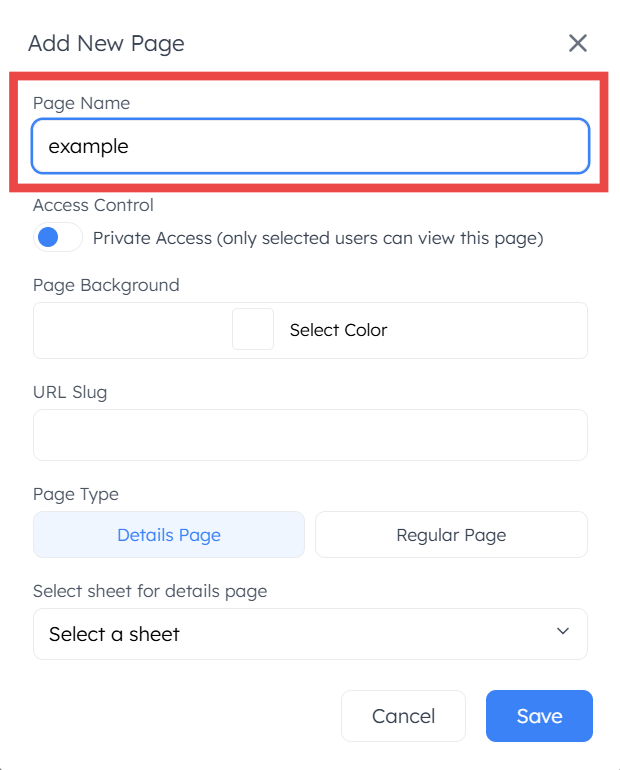
Page Name: Enter the title of the page for navigation.
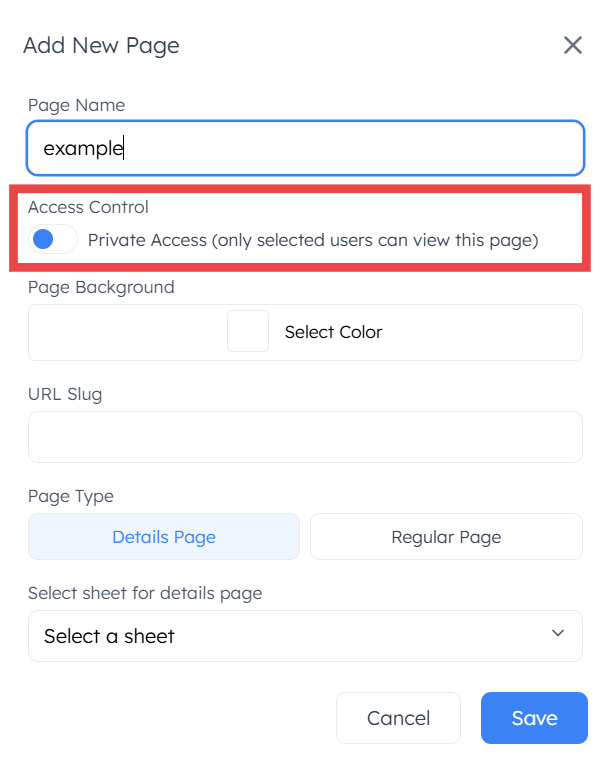
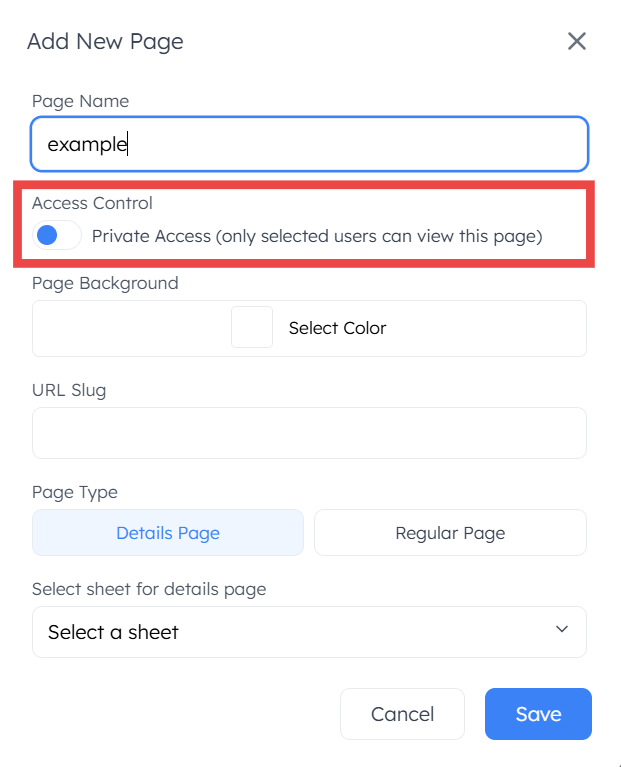
Access Control: Toggle “Private Access” to restrict who can view this page.
Toggle Off: The page is public; all users can see it.
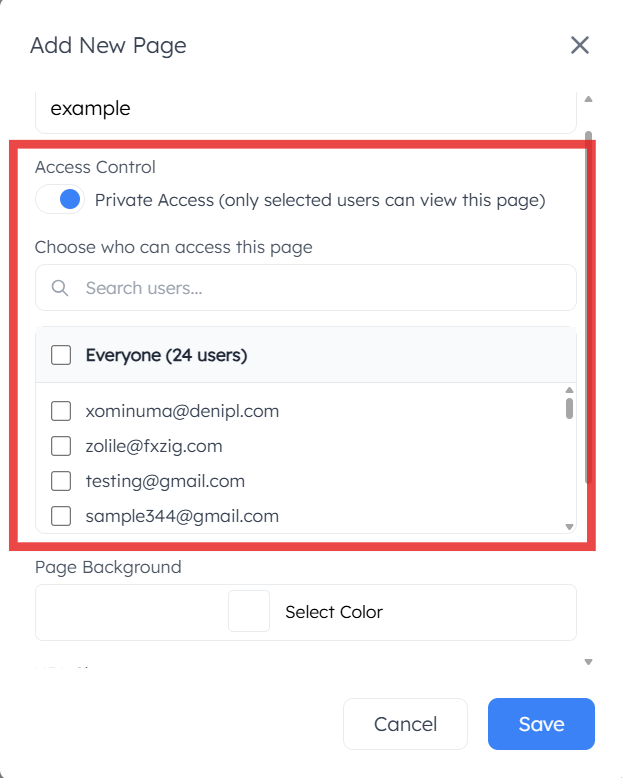
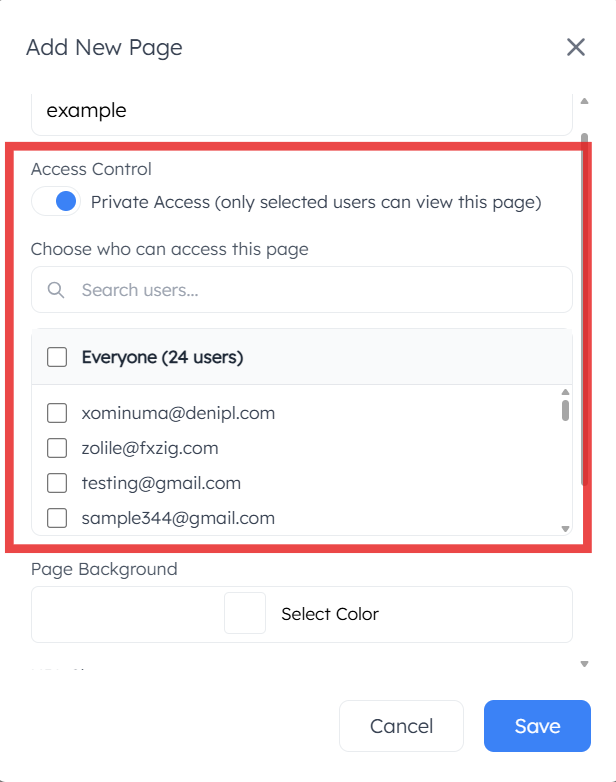
Toggle On: Only users manually selected from your added user list can view the page.
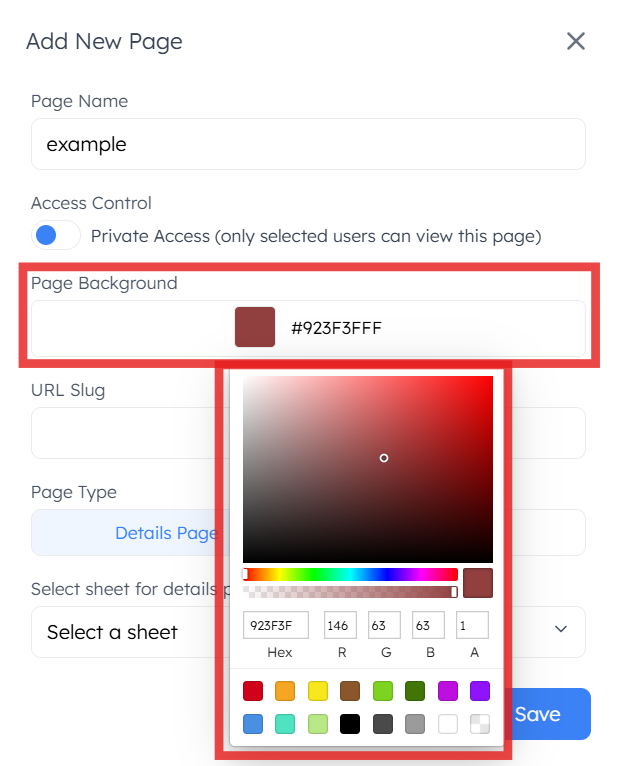
Page Background: Use the color picker to choose a custom background color for the page.
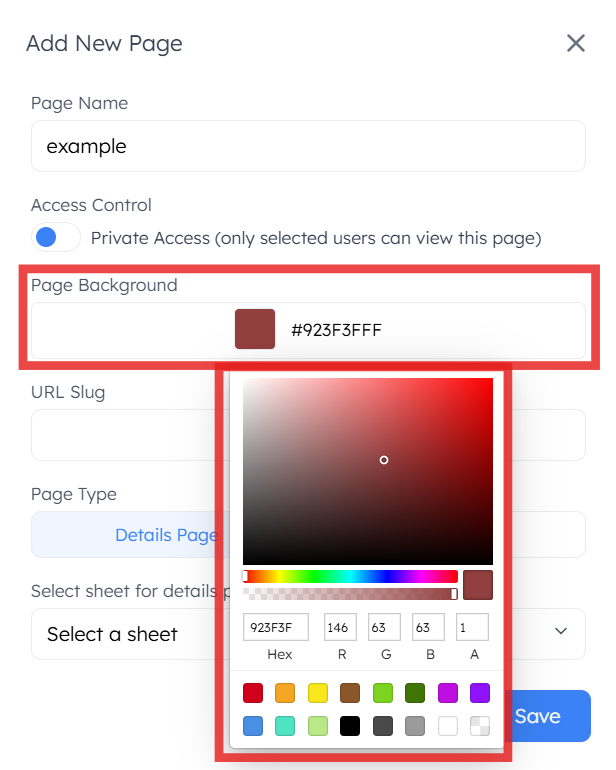
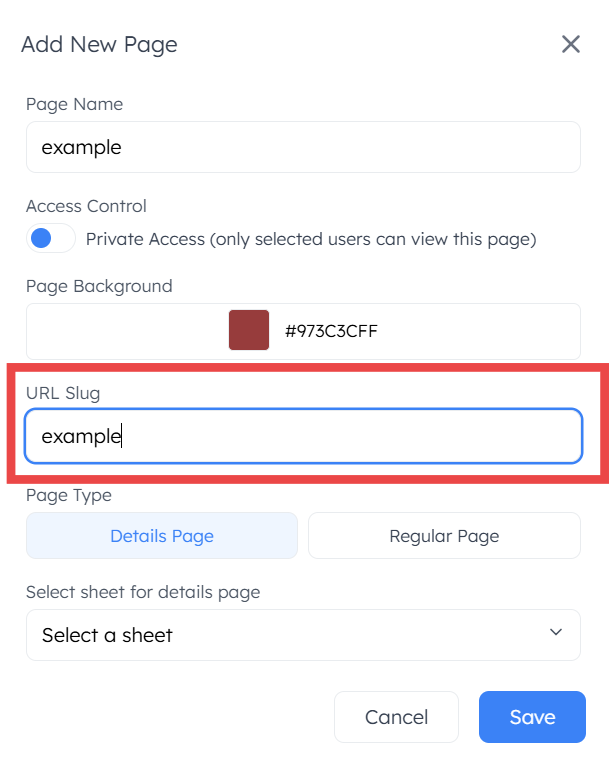
URL Slug: Define the custom URL path for this specific page.
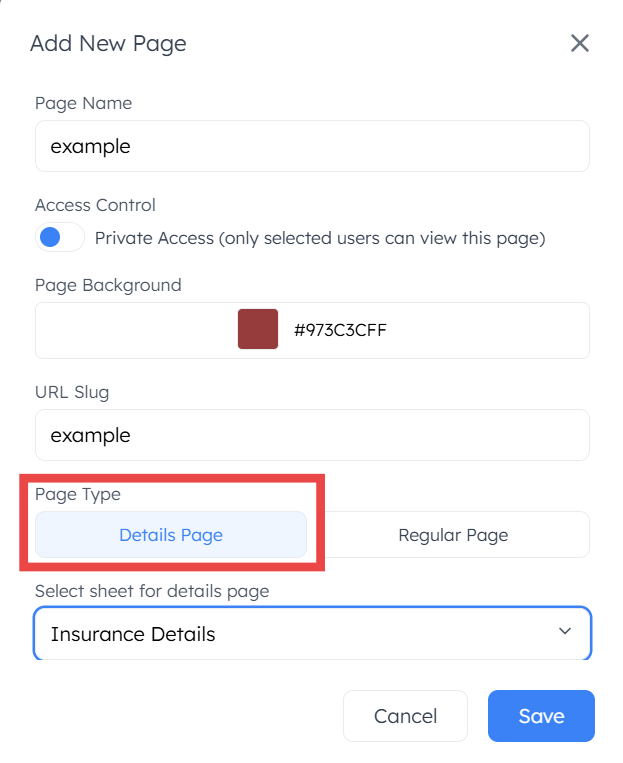
Page Type: Select Details Page.
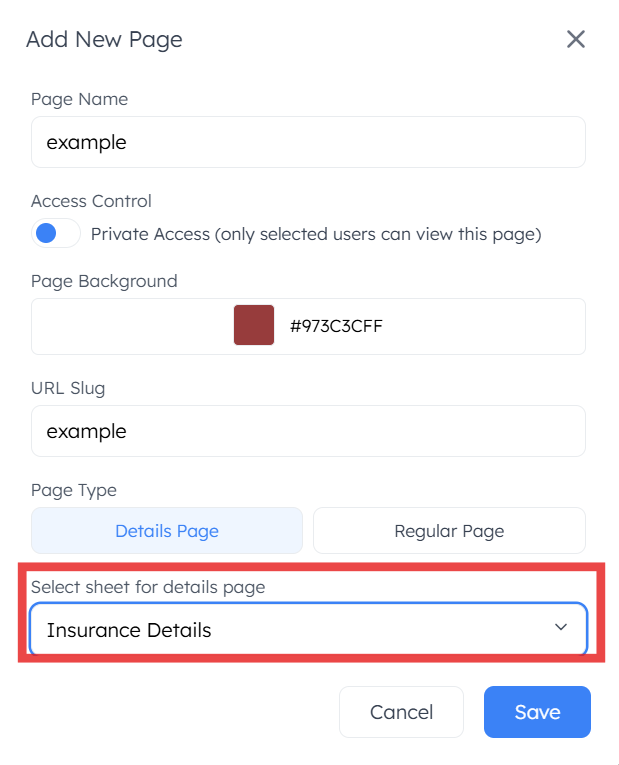
Select Sheet: Choose the specific Google Sheet that will act as the data source for this details view.
2. Regular Page
Used for standard data display and general app navigation.
Page Name: Enter the title of the page.
Access Control: Toggle “Private Access” to manage visibility.
Toggle Off: The page is visible to all users.
Toggle On: Use the user list below the toggle to select specific individuals permitted to view the page.
Page Background: Select a page color using the integrated color picker.
URL Slug: Define the custom URL path.
Page Type: Select Regular Page.